
Comparing Two Parameter Sets#
Some parameters have no right answer until you try them. Is the moving-average window wide enough to suppress the noise without flattening the transients? The way to decide is to analyze the session both ways and look at both results.
GuPPy keeps parameter sets apart with runs. A run is one analysis pass over a session — its stores, its parameter set, and its own output folder — and one session can hold as many runs as you want. Give each parameter set its own run and the second analysis never overwrites the first.
In this tutorial you analyze the sample session twice, once under each of two moving-average filter widths, and then open both results together. The same workflow applies to any parameter.
By the end you will have:
Created two named runs on one session,
filter_100andfilter_250Run Steps 2 through 4 into each run, one run at a time
Opened both runs in the Visualization GUI to compare them
Confirmed on disk that each run kept its own data and its own parameter snapshot
Prerequisites#
Your First Analysis, completed. This tutorial repeats that pipeline twice, so it describes each step only briefly and leaves the detail to the first tutorial. You need the same setup: GuPPy installed from source, and the sample session at
stubbed_testing_data/csv/sample_data_csv_1/pulled down with Git LFS.
Launch GuPPy, and in the Parameter Selection card select
stubbed_testing_data/csv/sample_data_csv_1/ as before:
guppy
Build the first run#
Click Label Stores in the sidebar and label the three channels exactly as you did in the first tutorial:
Channel |
Type |
Name |
|---|---|---|
|
|
|
|
|
|
|
|
|
Click Select Label Stores, fill in the rows, and click Show Selected Configuration.
Now the part that is new. Leave Create new run selected, and instead of keeping the
Run name GuPPy filled in, replace it with filter_100. Click Save.
A run’s name is the suffix on its run folder, output_<run name>, so this one creates
output_filter_100/ in the session’s mirror inside the output root folder. The name GuPPy
fills in is the next free integer — 1, then 2 — which is what the first tutorial got. Naming the run for the parameter you are varying carries that name into the folder
name and into the heading on the run’s visualization dashboard.
Run names may not be empty, contain path separators or .., or contain the substring
_output_.
Analyze it with the default filter window#
Back on the homepage, open Output Folder Selection and, under Existing runs (steps
2–5), navigate into sample_data_csv_1/ and select output_filter_100 — and only that one. Every step you
run acts on the runs selected here.
Leave the parameters at their defaults; Window for Moving Average filter (int) is
already 100, which is the parameter set this run is named for.
Run Step 2: Read Raw Data, then Step 3: Preprocess, then Step 4: PSTH Computation, waiting for each progress bar to fill before clicking the next. When Step 4 finishes, this run holds a complete result.
Build the second run#
Click Label Stores again and label the channels a second time, with exactly the same
names as before — control_A, signal_A, RewardPort. The stores must match for the
comparison to mean anything; only the analysis parameters should differ.
Leave Create new run selected again, replace the Run name with filter_250, and
click Save.
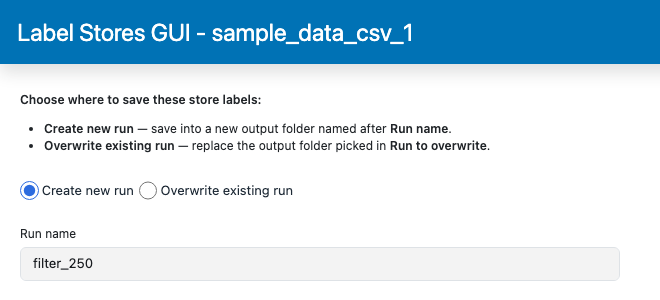
Leave Overwrite existing run alone here. It deletes the contents of an existing run folder, which would throw away the result you just computed.
Analyze it with a wider filter window#
Back on the homepage, open Output Folder Selection again. Both runs are now listed
under Existing runs (steps 2–5). Select output_filter_250, and make sure the first
run is not selected.
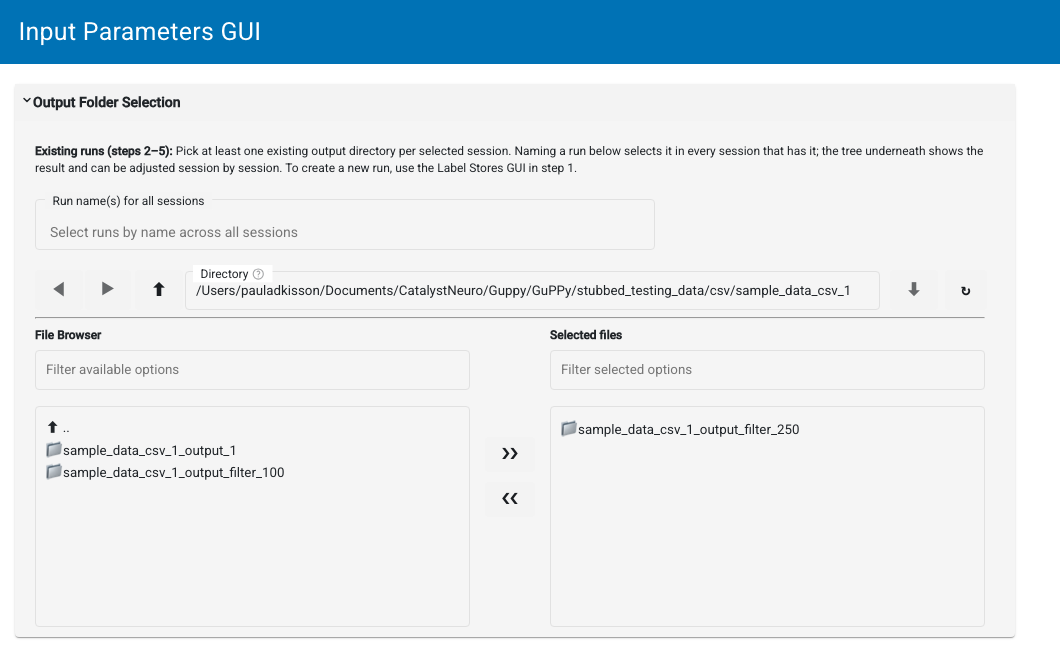
Selecting a run loads the parameters saved in it back into the form, which is why you start from the new run rather than editing the form first.
In the Parameter Selection card, change the one parameter you are testing:
Window for Moving Average filter (int) →
250
The window is a number of samples, not seconds. This session is sampled at about
1017 Hz, so the default 100 smooths over roughly a tenth of a second and 250 over
about a quarter of a second.
Now run Step 2: Read Raw Data, Step 3: Preprocess, and Step 4: PSTH Computation again, this time into the new run.
Step 2 is not optional even though you already ran it for the first run. Each run folder holds its own copy of the raw HDF5 data, and a run folder fresh from Label Stores is empty until Read Raw Data fills it. Each run therefore costs another copy of the raw data on disk.
Run one run at a time through Steps 2–4. The parameters in the form apply to every run you have selected, so selecting both here would compute both runs with identical parameters and defeat the comparison.
Compare the two runs#
Select both runs under Existing runs (steps 2–5), then click Open Visualization GUI. GuPPy opens one dashboard per selected run, each in its own browser tab, so you can flip between them with the same event and view selected.
Selecting two runs whose saved parameters differ shows the notification “Selected output runs have different saved parameters; the form was left unchanged.” That is expected here: each run’s parameters are already saved in its outputs, and Step 5 only reads them.
Every dashboard’s browser tab is titled Visualization GUI, so the tabs look identical.
The run folder name is the heading at the top of each page — that is how you tell which is
which. Put the two tabs on the same z-score PSTH and the trade-off is there to see: the
wider window gives a smoother curve, at the cost of a lower peak amplitude and coarser
timing.
To keep a figure, use Save As… above each plot; the file arrives through your browser’s downloads.
What landed on disk#
The session’s mirror in the output root folder now holds three run folders, the two from this tutorial beside the one from the first, with the session folder itself untouched:
stubbed_testing_data/csv/          the input root folder
└── sample_data_csv_1/             the session folder

guppy_output/                      the output root folder
└── sample_data_csv_1/             the session's mirror
    ├── output_1/
    ├── output_filter_100/
    └── output_filter_250/
Each is a complete, independent result — its own raw HDF5 copies, preprocessed traces,
PSTH outputs, and a GuPPyParamtersUsed.json recording the parameters the run was analyzed
with. Nothing is shared between run folders, so deleting one leaves the others intact. See
Output data model for the full file layout.
Gotchas#
GuPPyParamtersUsed.jsonrecords the form, not the step. It holds the form’s values at the time of the last step that touched the run folder, not the values each individual step used. Change a parameter only in step with re-running the steps it affects — otherwise a run folder’s snapshot can disagree with the data sitting next to it.Not every change needs the full pipeline. Once a run folder has been through Steps 2 and 3, changing a Step 3 parameter (z-score method, baseline window, moving-average window, control fitting, isosbestic correction, artifact removal) means re-running Steps 3 and 4 in it, while changing a Step 4 parameter (PSTH window, peak and AUC windows, baseline correction, transient thresholds) means re-running only Step 4.
A new run always starts at Step 2. Even if you are only varying a Step 4 parameter, a run fresh from Label Stores needs Steps 2 and 3 before Step 4 has anything to read.
Re-running into the same folder overwrites it. Pointing the pipeline at a run folder you have already computed replaces that result instead of sitting beside it, and you end up with nothing to compare.
Next steps#
See Custom Plots from GuPPy Outputs to load both run folders in Python and put their traces on one set of axes.
See the parameter reference for what every parameter you might vary this way actually controls.
See Explanation for background on the z-score methods and the isosbestic correction.