Your First Analysis#
This tutorial walks through a complete GuPPy pipeline run from raw CSV data to a PSTH plot. You will use the small sample dataset that lives inside the GuPPy repository (under Git LFS), so the only setup is the source-install steps below.
By the end you will have:
Launched the GuPPy GUI
Selected your data and reviewed the analysis parameters
Labeled your channels with stores
Loaded the raw data into HDF5
Preprocessed the signal
Computed the PSTH
Visualized the results
Prerequisites#
GuPPy installed from source, with Git LFS. This tutorial uses sample CSV files that live in the GuPPy repository under
stubbed_testing_data/csv/sample_data_csv_1/, which is tracked by Git LFS. A plaingit clonewill fetch only LFS pointer files (a few hundred bytes each) instead of the real CSVs, so you need both Git LFS installed on your machine and a clone with the relevant LFS payload pulled in:# Install Git LFS once per machine; see https://git-lfs.com for OS-specific instructions. git lfs install git clone https://github.com/LernerLab/GuPPy.git cd GuPPy git lfs pull --include="stubbed_testing_data/csv/sample_data_csv_1/*" pip install -e .
See installation for the full installation guide, including how to set up a conda environment first. The plain
pip install guppy-neuropath also works for installing the GUI itself, but you would still need to clone the repo (with Git LFS) separately to access the sample data.The sample data lives at
stubbed_testing_data/csv/sample_data_csv_1/inside the cloned repository. It contains three CSV files:File
Description
Sample_Control_Channel.csvIsosbestic (405 nm) control channel
Sample_Signal_Channel.csvCalcium-dependent (470 nm) signal channel
Sample_TTL.csvEvent timestamps
Each signal CSV has three columns:
timestamps(seconds),data(fluorescence), andsampling_rate. The TTL CSV has a singletimestampscolumn.
Step 0: Launch GuPPy and choose your data#
guppy
A browser tab opens showing the GuPPy dashboard.
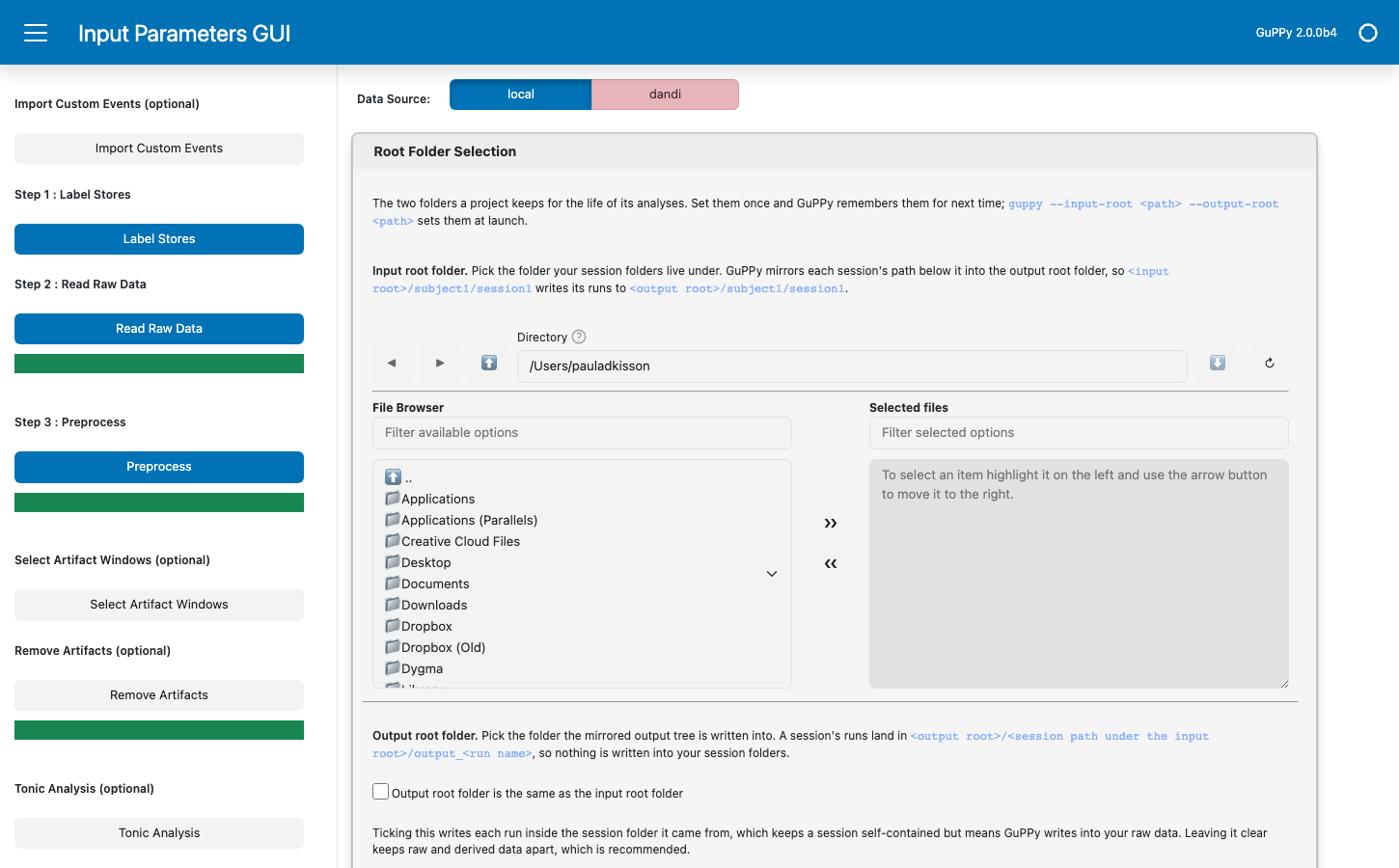
The page is split into a sidebar on the left and a main area on the right. The sidebar lists the pipeline buttons in run order, from Label Stores at the top through Visualization at the bottom, with a progress bar directly under each step that performs background work. The main area is where you select your data folder and configure parameters; settings are grouped into collapsible cards, of which this tutorial uses Root Folder Selection, Input Folder Selection, Output Folder Selection and Parameter Selection. The Step N labels in the sidebar (Label Stores through Export to NWB) match the numbered pipeline steps below, and the unnumbered buttons between them are optional steps this tutorial does not use; choosing your data and setting parameters in the main area, covered here in Step 0, is the setup that precedes them.
Before running the pipeline you pick the session folder you want to analyze, then look over (but not change) the analysis parameters that the rest of the pipeline will use.
Select your data#
Open the Root Folder Selection card at the top of the page. It holds the two folders a project keeps for the life of its analyses, and it opens itself while either is unset. Set the input root folder — the folder your session folders live under — to stubbed_testing_data/csv/, and the output root folder to wherever you want results written; anywhere outside your data is fine. GuPPy mirrors each session’s path below the input root into the output root, so these two decide the shape of your results tree. It remembers them, so the card folds away next time.
In the Input Folder Selection card’s Session folders browser, navigate to stubbed_testing_data/csv/sample_data_csv_1/ and click >> to move that folder into the Selected files pane on the right. The browser supports selecting multiple session folders at once for batch analysis; for this tutorial we are running a single session. Every session you select has to sit under the input root folder.
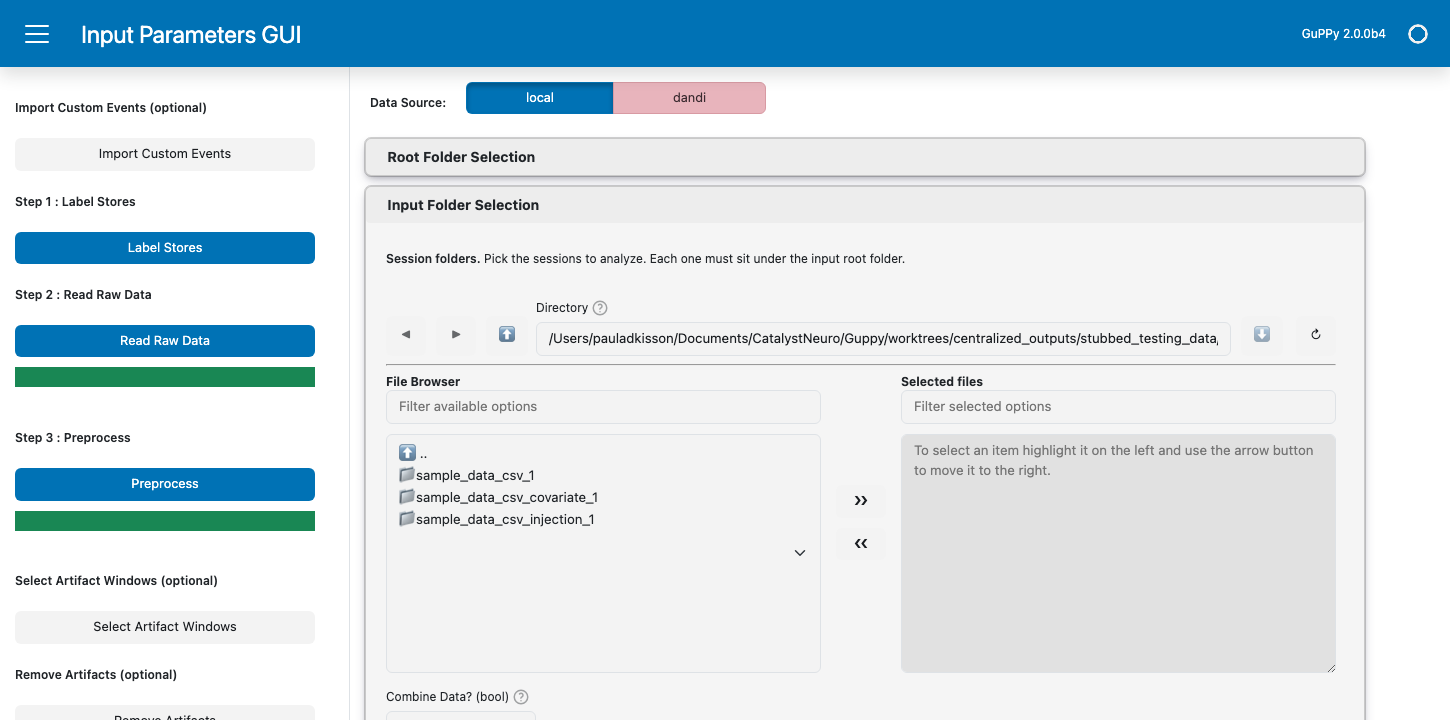
The Data Source toggle above the cards lets you switch between local (the default, file-system browsing) and dandi (streaming NWB sessions directly from DANDI). We are using local files here; see Analyze data streamed from the DANDI Archive for the DANDI workflow.
Set parameters#
The Parameter Selection card below lists the parameters that drive the rest of the pipeline, grouped into titled sections named for the operation each one configures. Every parameter carries a ? beside its label that explains what it does. For this tutorial the defaults are fine, so you do not need to change anything; the screenshot below is for orientation, not for hunting and clicking.
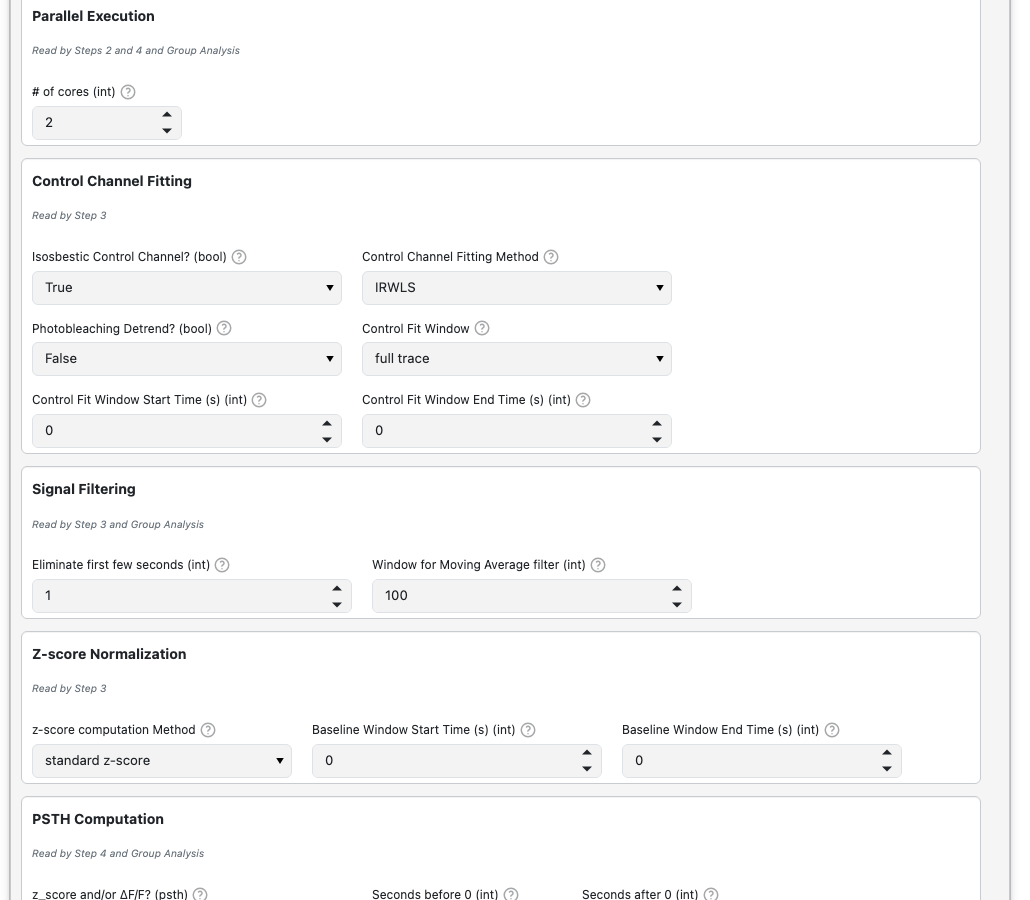
Each parameter is documented in the parameter reference.
Note
There is no separate “save parameters” action. Each pipeline step records the parameters it ran with into its output folder as GuPPyParamtersUsed.json, so that file always reflects the configuration that was actually applied. If you come back later, reselect an existing output folder under Output Folder Selection, and GuPPy reloads that run’s saved parameters into the form so you can continue (for example, run Preprocess and PSTH) without accidentally overwriting them.
Step 1: Label your channels#
A store is the human-readable label GuPPy uses for one of your data channels. Raw acquisition files come with cryptic, format-specific names (here, the CSV filenames Sample_Control_Channel, Sample_Signal_Channel, Sample_TTL); GuPPy needs you to map each one to a meaningful name like control_A, signal_A, or RewardPort. Those mapped names are what every downstream step (preprocessing, PSTH, plots, group analysis) refers to. The mapping is saved as storesList.csv inside a run folder created in the output root folder.
Click Label Stores in the sidebar. A new browser tab opens with the Label Stores panel for the selected folder. With several folders selected, the panel has a tab for each.
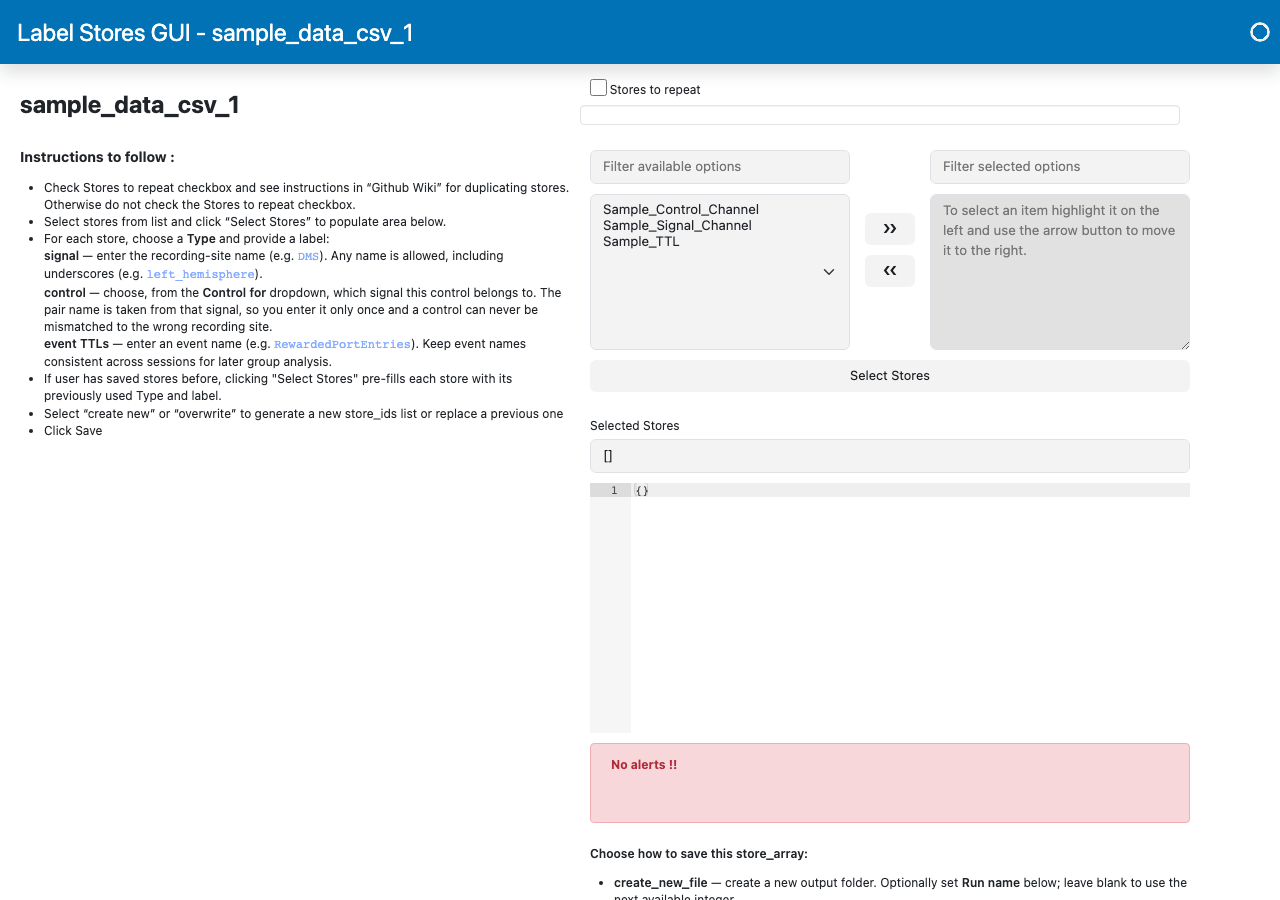
The three CSV filenames appear in the left list (Filter available options) of the Store Names Selection widget. Walk through these substeps:
Move all three channels to the right list. Click each of
Sample_Control_Channel,Sample_Signal_Channel,Sample_TTLin the left list and use the>>button to move it to the right. (Or shift-click to select all three at once before clicking>>.)Click “Select Label Stores”. A new Configure Label Stores section appears below, with one row per channel. Each row has a Type dropdown and a Name text field.
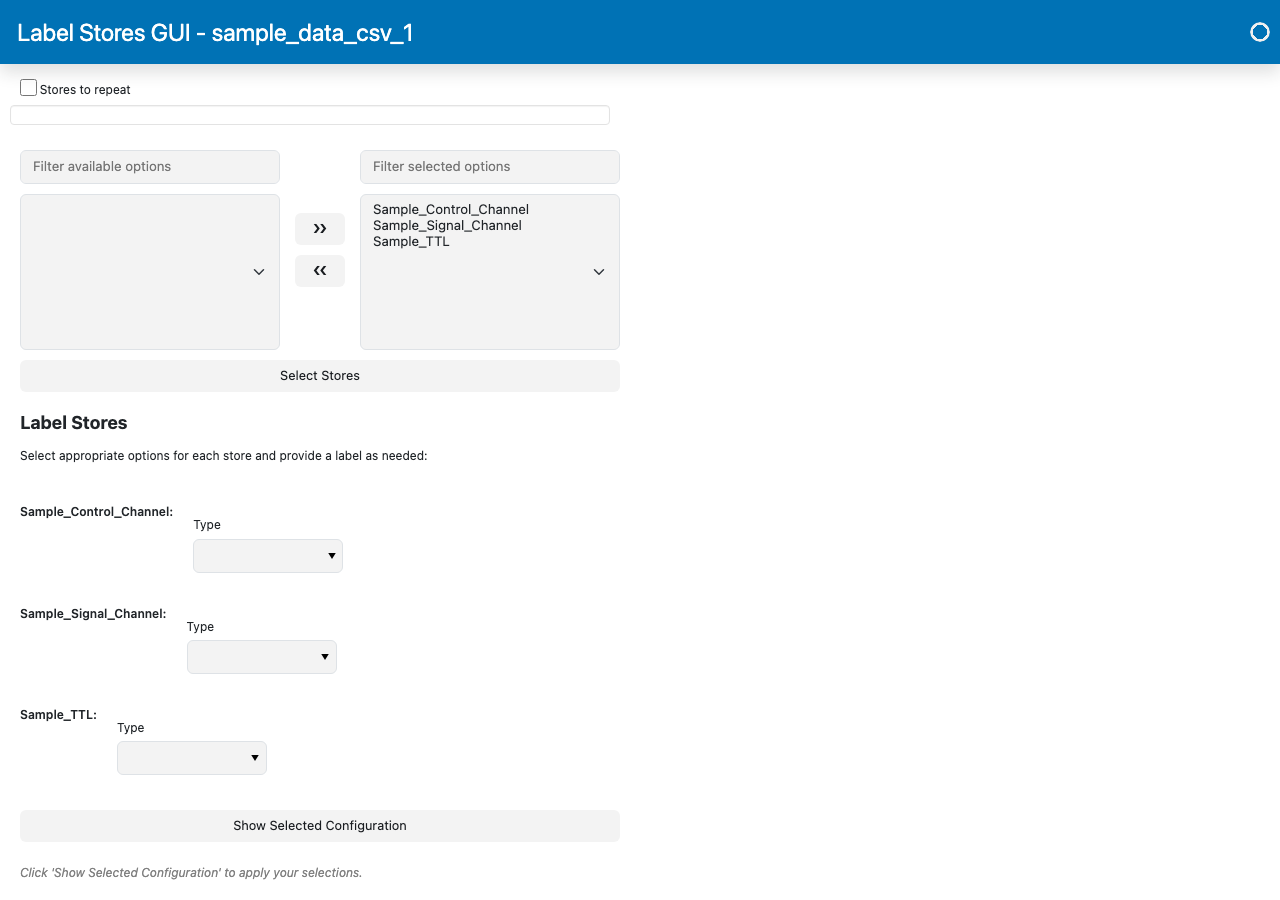
Fill out one row per channel. The Name field is a recording-site identifier, not a description of the channel’s role. The control and signal rows must use the same Name because GuPPy uses that match to pair the isosbestic (405 nm) control trace with the calcium-dependent (470 nm) signal trace from the same fiber, then fits and subtracts one from the other during preprocessing to remove motion artifacts and photobleaching. In a multi-fiber recording, each fiber gets its own identifier (e.g.
DMS,DLS) so each control is paired with its own signal. In this single-fiber tutorial we useA. The event TTL row uses a free-form event name instead.Channel
Type
Name
Sample_Control_ChannelcontrolASample_Signal_ChannelsignalASample_TTLevent TTLsRewardPortGuPPy combines the dropdown and text field into the final store:
control+Abecomescontrol_A,signal+Abecomessignal_A, and the event TTL keeps the name as-is (RewardPort). If the control and signal Name fields differ, saving will fail withMismatched signal/control recording-site pairs in storesList — Every 'signal_<recording_site>' must have a matching 'control_<recording_site>'.Click “Show Selected Configuration”. This applies your row entries to the JSON editor below, which should now read something like:
{
  "Sample_Control_Channel": ["control_A"],
  "Sample_Signal_Channel": ["signal_A"],
  "Sample_TTL": ["RewardPort"]
}
Choose where to save the store labels. Leave Create new run selected, and leave the Run name GuPPy fills in,
1.This choice picks the run folder for the entire analysis pipeline. From this point on, every downstream step (Read Raw Data, Preprocess, PSTH Computation, Visualization) writes its outputs (HDF5 files, PSTH results, plots) into that directory and reads
storesList.csvfrom it to know which raw channel maps to which store. Create new run makes a fresh directory namedoutput_<run name>/inside the session’s mirror in the output root folder — for this tutorial,<output root folder>/sample_data_csv_1/. The run name GuPPy fills in is the next free integer, so the first run getsoutput_1, the secondoutput_2, and so on. Your raw session folder is left exactly as it was.Note
The other option, Overwrite existing run, is for re-running on a session that already has a run folder. It lets you pick an existing
output_<run name>/under Run to overwrite, deletes everything inside it (the previousstoresList.csvplus any HDF5 and PSTH results from the previous run), and starts that directory over fresh. Pick it only when you genuinely want that destructive behavior. For the tutorial, ignore it.Click Save. GuPPy creates the run folder (
<output root folder>/sample_data_csv_1/output_1/) and writesstoresList.csvinto it. The downstream steps will read and write inside this folder.
You can close this Label Stores tab and return to the original homepage tab. Open Output Folder Selection and, under Existing runs (steps 2–5), select output_1 under sample_data_csv_1. Every step from here on acts on the runs selected there.
Step 2: Load the raw data#
Click Read Raw Data. A progress bar appears in the sidebar directly below the button and fills as the work runs. That bar is the primary signal that the step is in progress.
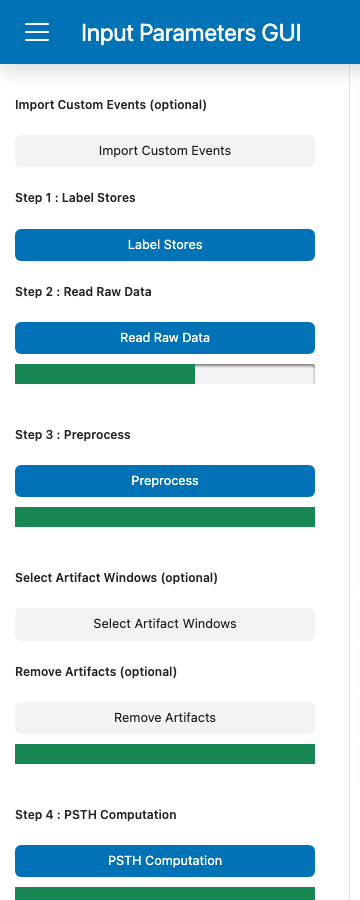
The other bars on the sidebar (under Preprocess, Remove Artifacts, and PSTH Computation) appear pre-filled at 100% as a styling default; they reset to 0 and fill while their own step is running. So a fully-green bar does not mean that step is done, it just means it has not been touched yet.
GuPPy loads each CSV file and writes the data into the output folder you created in Step 1, one HDF5 file per store (so for this tutorial: sample_data_csv_1/output_1/control_A.hdf5, .../signal_A.hdf5, .../RewardPort.hdf5). Each file holds the channel’s data, timestamps, and sampling_rate datasets plus a few metadata fields. HDF5 is a binary format that stores large numerical arrays efficiently and supports partial reads, which speeds up the later pipeline steps.
When the progress bar reaches 100% the step is complete. Confirmation messages are also logged to the terminal where you launched guppy.
Step 3: Preprocess the signal#
Click Preprocess. As with Read Raw Data, a progress bar appears in the sidebar directly below the button and fills as the work runs.
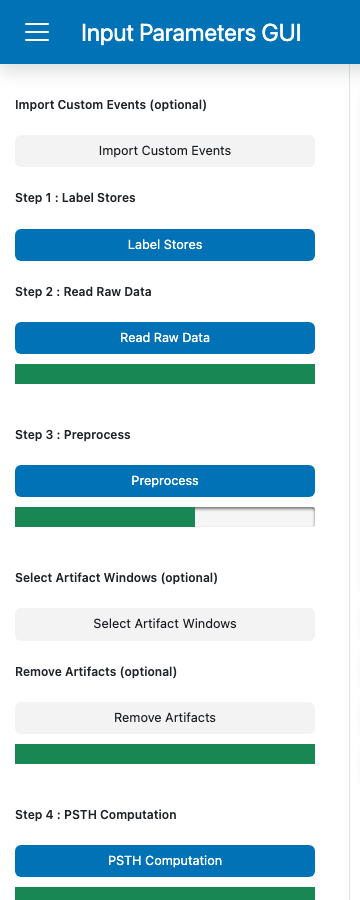
GuPPy runs the following on the raw signal:
Trims the first few seconds from both channels (the Eliminate first few seconds parameter, internally
timeForLightsTurnOn).Applies a moving-average filter to reduce high-frequency noise (the Window for Moving Average filter parameter, internally
filter_window).Fits the control channel to the signal channel, then subtracts it. This removes motion artifacts and photobleaching that affect both channels equally. The fitting method is configurable (the Control Channel Fitting Method parameter, internally
control_fit_method): the defaultIRWLSis a robust regression that down-weights outliers, with ordinary least-squares (OLS) regression available as an alternative.Computes the z-score and the dF/F (delta F over F) of the corrected signal.
The results are written into the same output folder as Step 2, in four new HDF5 files per recording site. You do not choose the location or the file names; they follow a fixed convention:
File |
Contents |
|---|---|
|
The z-scored trace |
|
The dF/F trace |
|
The fitted control trace (used internally and for artifact-removal plots) |
|
Corrected timestamps, sampling rate, and a few related metadata fields |
Step 3 also rewrites the per-channel files under their store labels. The Output data model reference lists every file and the datasets inside it, and Custom Plots from GuPPy Outputs shows how to load them in Python.
When preprocessing finishes, the Show results button beside Preprocess becomes clickable, and it opens the preprocessing results in a new browser tab. Pick a recording site and its five traces stack up together — control, signal, signal with the fitted control, z-score, and ΔF/F — sharing one time axis, so zooming any of them zooms them all. The main GuPPy tab stays responsive, so you can leave the results tab open and keep working.
Optional: remove artifacts#
If the traces in that results tab show stretches you want excluded — a knocked patchcord, a chewing bout — two optional steps sit between Step 3 and Step 4 for that: Select Artifact Windows, where you mark the contaminated periods, and Remove Artifacts, which applies them. The sample data for this tutorial is clean, so you can skip both. See Remove artifacts from a recording when you need them.
Step 4: Compute the PSTH#
Click Compute PSTH. As with the previous two steps, a progress bar appears in the sidebar directly below the button and fills as the work runs.
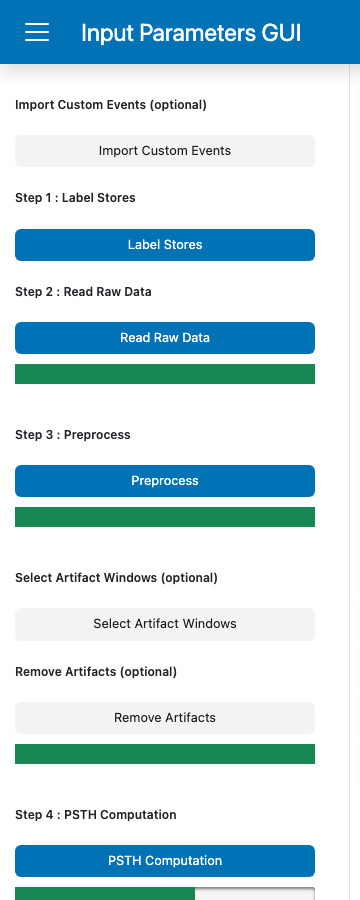
GuPPy aligns the z-scored trace to each event timestamp in Sample_TTL.csv, extracts the window defined by the Seconds before 0 / Seconds after 0 parameters (internally nSecPrev, nSecPost) around each event, and averages across all trials. The result is a peri-stimulus time histogram (PSTH).
The default window is -10 to +20 seconds. With the sample data you will get a small number of trials (the TTL file has just a handful of timestamps), so the average will be noisy. This is expected for a minimal example dataset.
The outputs land in the same sample_data_csv_1/output_1/ directory you have been using since Step 1, with one set of files per (event, recording site) pair. For this tutorial that is the single pair (RewardPort, A):
File |
Contents |
|---|---|
|
The peri-event timestamps (the x-axis of the PSTH) |
|
The PSTH dataframe: one column per trial, plus |
|
Same dataframe before baseline correction was applied (kept for inspection) |
|
Peak amplitude and area-under-curve for the trial-mean PSTH |
The visualization step in Step 5 reads these files; you do not need to inspect them by hand. If you do want to open them yourself, the Output data model reference gives the columns of each table and the datasets in each HDF5 file, and Custom Plots from GuPPy Outputs walks through loading them and plotting them yourself.
Step 5: Visualize the results#
Click Open Visualization GUI in the sidebar. A new browser tab opens with the Visualization GUI for this session, organized into two tabs.
A Metric selector sits with the display settings on the PSTH tab, and beside the event selector on the Heat Map tab. It lists the metrics Step 4 actually computed for this run, so here it offers only z-score; had you run Step 4 with Both, you could switch both tabs between the two without re-running the step. Whichever metric is selected also labels the y axis of every PSTH plot.
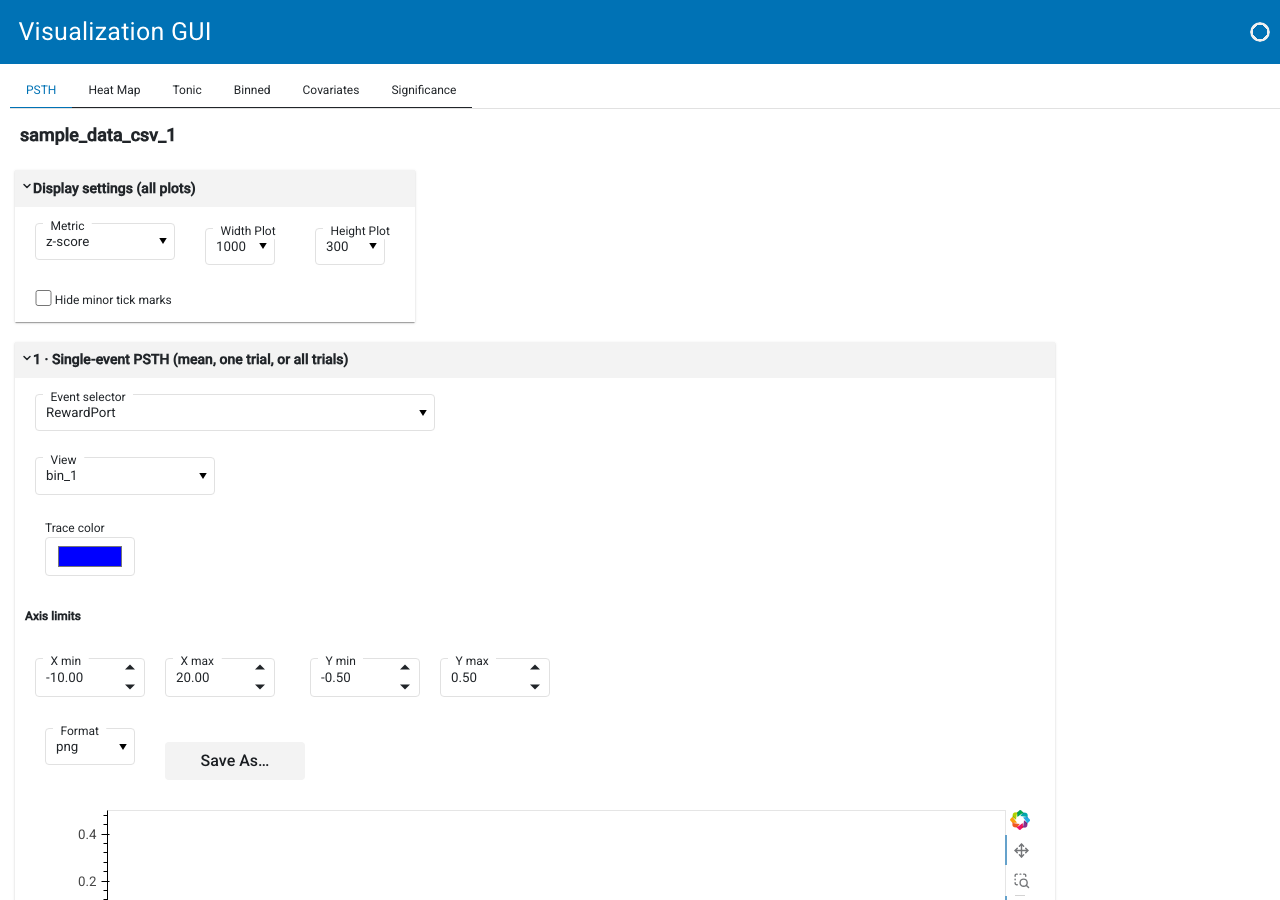
The PSTH tab is the default view. It shows the trial-aligned trace for one event with controls running down the left:
Event selector: which TTL channel to align to (here
RewardPort).X and Y dropdowns: what to plot on each axis. X is typically
timestamps, Y can bemean(the trial average) or an individual trial liketrial_1.X Limit and Y Limit range sliders: restrict the displayed window.
Width Plot, Height Plot, Save options dropdowns and a Save PSTH button: figure dimensions and export.
On the right is a trial multi-select (Trial # - Timestamps) and a Select mean and/or just trials checkbox group, which together let you overlay any combination of individual trials and the mean. With a TTL file containing only a handful of timestamps, the average will be noisy; this is expected for the minimal sample dataset.
The Heat Map tab shows trials stacked vertically with colour encoding the metric, which is the better view for inspecting trial-to-trial variability. Its controls mirror the PSTH tab: event selector, Color map (plasma, viridis, …), width and height, save options, and a trial picker.
For this tutorial, the goal is just to reach a rendered PSTH; feel free to play with the controls. A deeper walkthrough of the visualization options will live in an upcoming how-to guide.
Next steps#
See Custom Plots from GuPPy Outputs to open this run folder in Python and build your own figures from it.
See Export a session to NWB to package this run — raw traces, events, and every derived result — into a single shareable NWB file.
See How-to Guides for task-specific instructions (TDT data ingestion, artifact removal, group analysis, etc.).
See Explanation for background on the isosbestic correction and z-score methods.