
Analyze data streamed from the DANDI Archive#
Point GuPPy at a public dandiset on the DANDI Archive and stream the NWB assets you select straight through the pipeline. Nothing is downloaded except GuPPy’s own outputs. Follow this to reanalyze published fiber photometry data, or to check your own dataset after uploading it. If your data is already on disk, follow Your First Analysis instead.
Streaming a public dandiset needs no DANDI API key. GuPPy reads the dandiset’s
draft version.
Choosing a dandiset and assets#
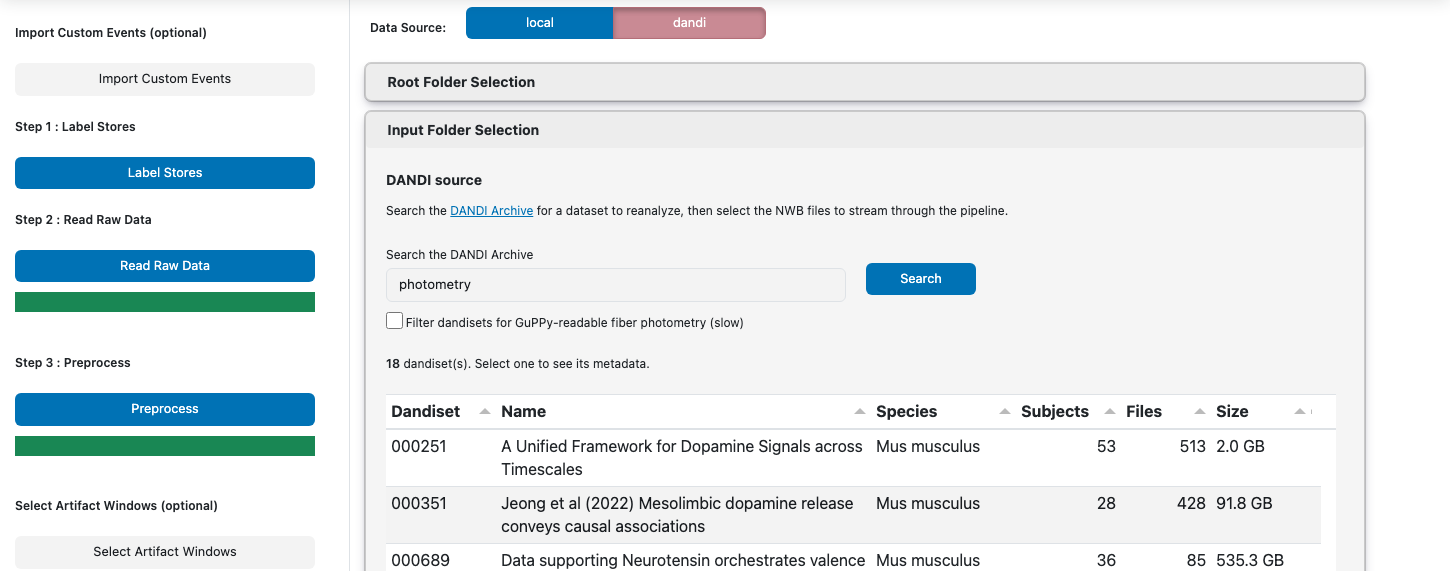
Set Data Source, above the cards at the top of the page, to dandi. In
Input Folder Selection the local file browser is replaced by the DANDI panel,
which walks you through three screens: a list of dandisets, one dandiset’s page,
and that dandiset’s files.
Finding a dandiset#
Start from the list already on screen. The panel opens having searched the archive for
photometry, so you have candidates without typing anything.To look for something else, replace the term and search again, or type a six-digit Dandiset ID to go straight to one dandiset. Click a column header to sort the table.
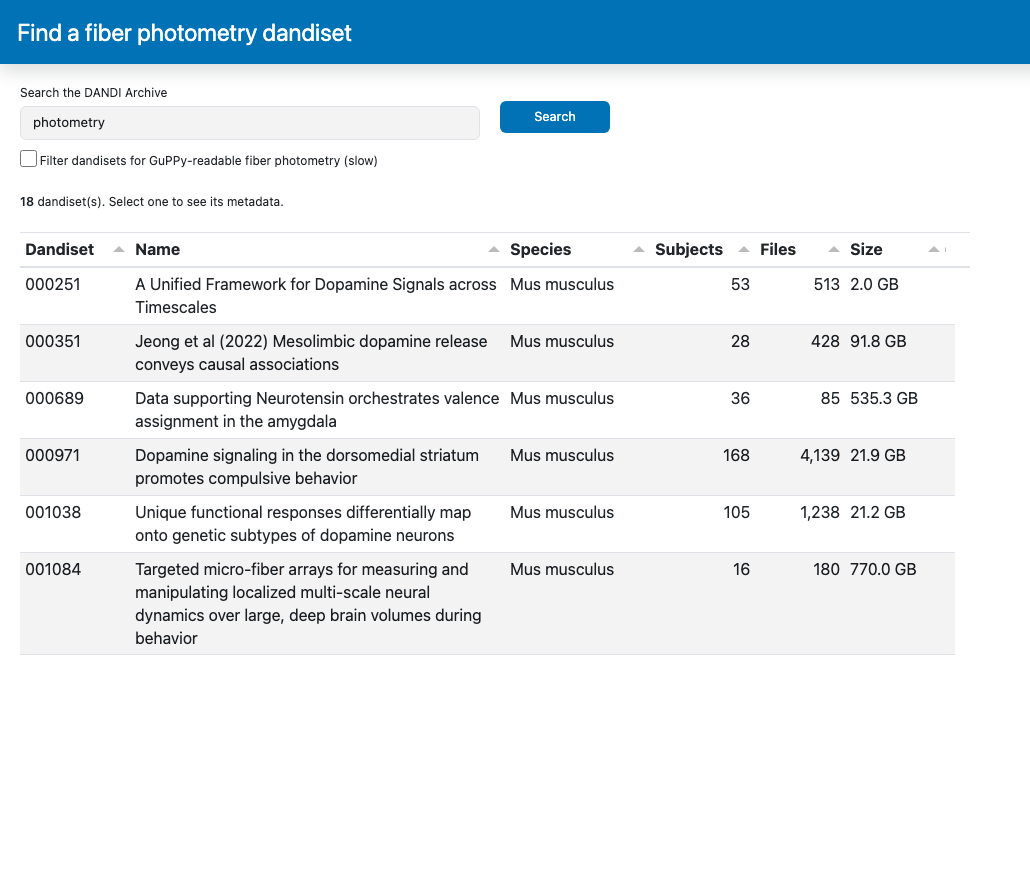
Tick Filter dandisets for GuPPy-readable fiber photometry to find out which of the listed dandisets GuPPy can actually read. The search matches only what a dataset’s authors wrote about it — its title, abstract and keywords — so mentioning photometry is not the same as holding it; the filter settles the question by reading the listed dandisets’ NWB files and dropping the ones GuPPy cannot use.
Expect minutes where the search took seconds, which is why it starts off. Watch the progress bar, and click Stop to end it early. Filter a narrow search rather than a broad one: filtering one result is seconds where filtering twenty is minutes. Verdicts are remembered between sessions, so filtering the same datasets again is immediate, and unticking the box brings the unread dandisets back with the verdicts still in hand.
Treat what survives as a floor rather than the whole truth. A dataset can record real fiber photometry and still be dropped, if it stores its traces as a type GuPPy does not read.
Reading a dandiset’s page#
Click a row to open that dandiset’s page, and read it to decide whether the dataset is the one you want: its citation details, license, species, subject and file counts, size, keywords and abstract, with a link to its page on dandiarchive.org. Click ← Back to results to return to the list with your search intact.
When you have found the dandiset you want, click Analyze this dandiset to open its files.
Selecting the NWB files#
Click Scan for fiber photometry before you go hunting. A dandiset usually holds far more assets than recordings, and the folder names give no sign of which is which — in
000971, 63 of 4139 assets carry traces, spread across 40 of its 168 subject folders.The scan reads every listed file’s header straight from the archive, then ticks Show only files GuPPy can read so the tree holds just those. Expect a couple of seconds for a typical dandiset and well under a minute for one the size of
000971. Untick the box to bring the whole listing back. Its verdicts are remembered alongside the dandiset filter’s, so scanning the same files again is immediate.Browse the subject folders and select one or more NWB files. Navigation works as in local mode — click a folder to descend, Ctrl/Cmd-click to multi-select. Only
.nwbassets are listed.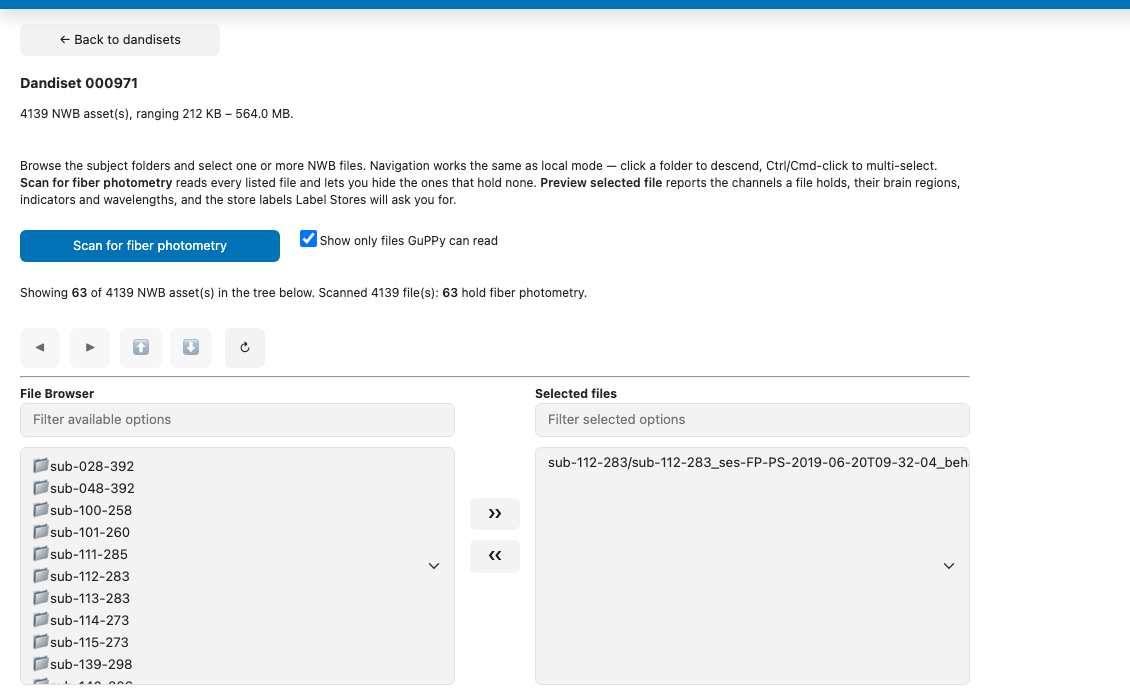
Checking what is inside a file#
Click Preview selected file to stream a file’s header and see what it holds, none of which is on the dandiset’s page on dandiarchive.org.
A preview is of one file, while the pipeline runs on every file you selected. Choose which of your selected files to read with File to preview beside the button; picking a different one leaves your selection alone, so you can look through a batch before analyzing it.
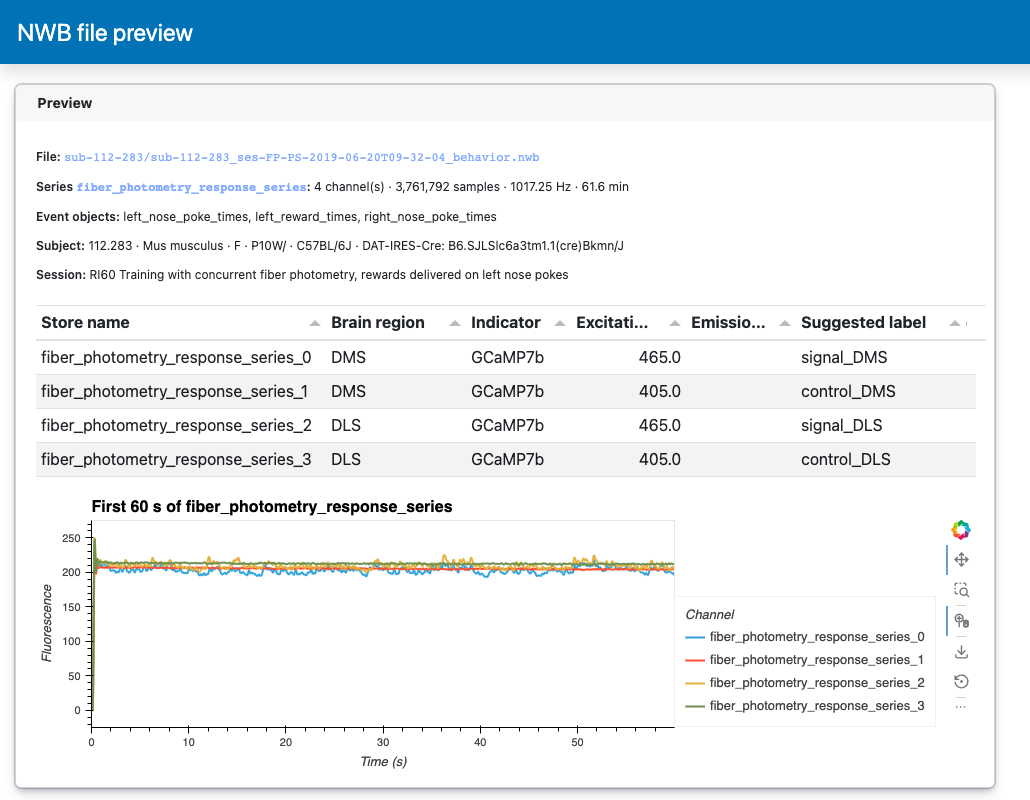
Read the three parts of the preview to decide whether the file is worth analyzing:
The response series gives its channel count, sampling rate and duration, plus the event objects GuPPy can align a PSTH to and the subject the session came from.
The channel table gives each channel’s recording site, indicator and excitation and emission wavelengths. Read its Store name column as the store id Step 1: Label Stores will offer you for that channel, and Suggested label as the GuPPy label its wavelength and site imply — 405–420 nm is isosbestic, so
control_<site>, and anything longer issignal_<site>. Where a file stores derived traces as their own series a site repeats across them, so pick the pair you want to analyze.The first 60 seconds of every channel let you see the traces before committing to a full streaming run. Switch between series with Traces from series when the file holds more than one. The window starts at the recording’s first sample, so a session that begins with the LED turning on opens on that transient — pan and zoom past it, and set Eliminate first few seconds when you run the pipeline.
If the file holds no
FiberPhotometryResponseSeries, the preview says so and lists whatever event objects it does hold; pick a different file.Click Hide preview when you are done with it.
Choosing the output root folder#
Set the output root folder in the Root Folder Selection card, if you have
not already. GuPPy creates one session folder per selected asset inside it, named
after the asset filename minus .nwb, and writes that session’s runs there. The
recording itself is streamed and never downloaded, so the session folder holds only
what the analysis writes into it.
DANDI mode asks for no input root folder, and the card hides it: a streamed session has no local raw data to sit under. This is why the assets land in the output root — it keeps GuPPy from creating folders inside whatever you use for your own recordings.
Labeling the streamed stores#
Run Step 1: Label Stores as you would for local data; the page behaves exactly as in Step 1 of the tutorial.
The store names you are labeling come from inside the NWB file rather than from
filenames. A 2-D FiberPhotometryResponseSeries contributes one store per
column, named <series name>_<column index>; 1-D series and event objects keep
their own names.
Column order is not self-describing, so map each store onto its site and
wavelength using the channel table from the preview. For
sub-112-283_ses-FP-PS-2019-06-20T09-32-04_behavior.nwb in dandiset 000971, a
two-site recording, that gives:
Store |
Label |
|---|---|
|
|
|
|
|
|
|
|
|
|
Running the rest of the pipeline#
Run Steps 2–5 as in local mode. Step 2: Read Raw Data is the only one that touches the network, writing each store into the run folder as it streams — the 62-minute, four-channel recording above took about 20 seconds.
Once Step 2 finishes you can re-run preprocessing, PSTH and visualization offline and without a key, since Steps 3–5 read the local files Step 2 wrote.
What lands on disk#
No recording data from the archive is cached. What GuPPy does keep is the dandiset filter’s and
the file scan’s verdicts on which files hold fiber photometry, in its user cache directory;
guppy --clear-dandi-cache deletes them. GuPPy also ships with the dandiset filter’s verdicts
for the whole archive, refreshed each month, so the filter reads only the dandisets that have
changed since. guppy --no-bundled-dandi-cache launches without those, so that together with
clearing the user cache, the next filter or scan reads every file again.
Assets materialize as session folders inside the output root folder, and each session’s runs are
written in it:
Path |
Contents |
|---|---|
|
Session folder, one per selected asset |
|
Run folder |
|
Store-to-label mapping from Step 1 |
|
One raw stream per store from Step 2, named by store id (e.g. |
Step 3 onward writes the usual per-site files (signal_DMS.hdf5,
z_score_DMS.hdf5, and so on). See
Output data model for the full layout.
Notes#
Select several assets to queue them as separate sessions, streamed one after another.
Re-select an asset to reuse its existing session folder; Step 1 then creates an
output_2run alongside the first.The asset browser lists zero-byte placeholders standing in for the dandiset’s real files, so you can navigate it without downloading anything. They live under your system temp directory.
After Step 2 the sessions are ordinary local folders, so group analysis and Combine Data? apply normally.