Import custom events#
GuPPy can align analyses to behavioral events you derived outside the acquisition system — for example movement onsets thresholded from a velocity trace, or events scored by hand from video. This guide shows the two ways to bring those timestamps in. Both produce the same artifact: a GuPPy-compatible event CSV in the session folder that appears as a selectable store in the Label Stores GUI.
This is an optional step. If all the events you care about are already in the recording, skip it.
Put event times on the recording’s clock#
Event times are in seconds, on the same clock GuPPy uses for the recording. Which clock that is depends on the acquisition format:
TDT: seconds from the start of the recording, so the first sample is at
0.Every other format: the clock the acquisition system wrote, which often does not start at zero. A Neurophotometrics session might report its first sample at
53116.2seconds.
Times measured from the start of the session, such as elapsed time in a video
started together with the photometry, need the recording’s first timestamp added to
each one before you import them. Step 3 records that value as recordingStart in
each run’s timeCorrection_<site>.hdf5 (see
Output data model). For a Neurophotometrics session you
can also read it from the first row of the timestamp column in the photometry CSV,
divided by 1000 if that column is in milliseconds.
If Step 4 stops with an error saying an event store “spans” a range where “Every trial would be empty”, the event times and the signal are on different clocks. The message prints both ranges, so you can compare them directly.
Option 1: Paste timestamps in the GUI#
Use this when you have a list of event times to hand (e.g. a column copied from a spreadsheet).
Select your session folder(s) on the homepage as usual.
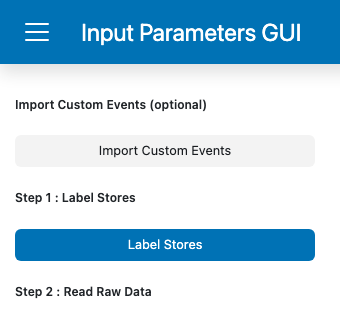
Click Import Custom Events (above Step 1: Label Stores in the sidebar). A window opens for each selected session in turn.
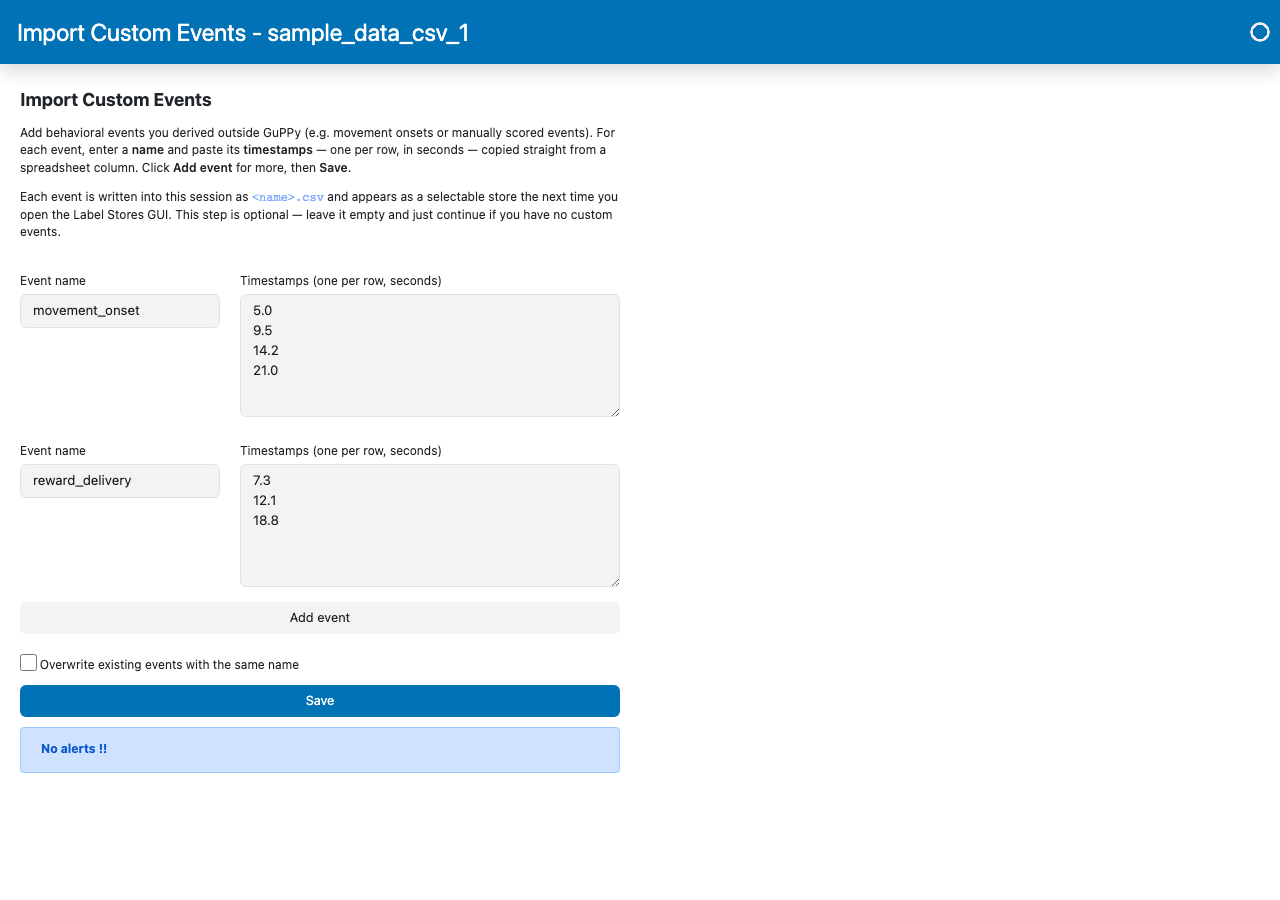
For each event, enter a name and paste its timestamps — one per row, in seconds — into the paste box. The values come straight from a spreadsheet column; no header or surrounding text.
Click Add event to add another event, then Save.
Open the Label Stores GUI: each imported event now appears as a store named after what you typed, ready to label like any other.
Notes:
Events are saved per session, so you can paste different events into each session’s window (useful for hand-scored data that differs per recording).
To replace an event you already imported, tick Overwrite existing before saving; otherwise a name that already exists is rejected so you don’t lose data by accident.
Timestamps are saved in the order pasted. If they are not in increasing order you’ll see a warning, but they are still saved.
Option 2: Build the CSV yourself#
Use this when your data lives in a format GuPPy doesn’t read directly (a tracking-software export, an Excel workbook, a custom analysis output). Convert it to the GuPPy-compatible event CSV yourself and drop the file into the session folder.
The format is deliberately minimal:
A single column with the header
timestamps(matched case-insensitively, soTimestampsorTIMESTAMPSwork too).One event time per row, in seconds, on the recording’s clock (see Put event times on the recording’s clock).
The file name (minus
.csv) becomes the event/store name.
For example, movement_onset.csv:
timestamps
0.5
1.5
2.5
Place that file in the session folder. GuPPy detects it automatically — no
configuration needed — and it shows up as a store named movement_onset the
next time you open the Label Stores GUI.