
Average results across sessions#
Group analysis pools an event’s response across several output runs into one averaged result, covering the PSTH, peak/AUC, transient frequency and amplitude, and cross-correlation. The averaged output has one column per member run where a single session’s output has one column per trial, which gives you a cohort- or animal-level view without reading each session’s plot separately. Group analysis is optional. Most analyses only need per-session results, and those never touch the group steps.
A group is a named directory of its own, so several can sit side by side. You might keep a
saline_group and a cocaine_group and visualize both at once.
Before you start#
Group analysis averages results that already exist on disk. Run Step 1 through Step 4 on every session you want to include first; see Your First Analysis for that baseline workflow. A run folder can join a group once it has its own PSTH output.
Every member run also needs the same recording-site labels, meaning the names you gave the
channels in Step 1’s Label Stores GUI, such as DMS or DLS. GuPPy checks this when the step
runs and stops with an error naming the mismatched run if the sites disagree.
Behavioral event labels are free to differ between members. Averaging a novelobject session
alongside a novelfemale1 session works, and GuPPy averages each event over just the members that
recorded it.
Defining a group#
Groups follow the same pattern as individual runs. Label Groups defines one, and the Group Output Folder Selection card picks which defined groups you are working with, once, for every step that touches them.
Click Label Groups in the sidebar. A new browser tab opens with the Label Groups page.
Leave the mode at create_new_group.
Under 1 · What goes into the group?, pick the member runs. These are the run directories under the output root folder. They may live under different parent directories.
Under 2 · Where does the group go?, type a Group name and pick the destination directory. The name may not contain path separators,
..,_output_, or_group.Click Save group definition.
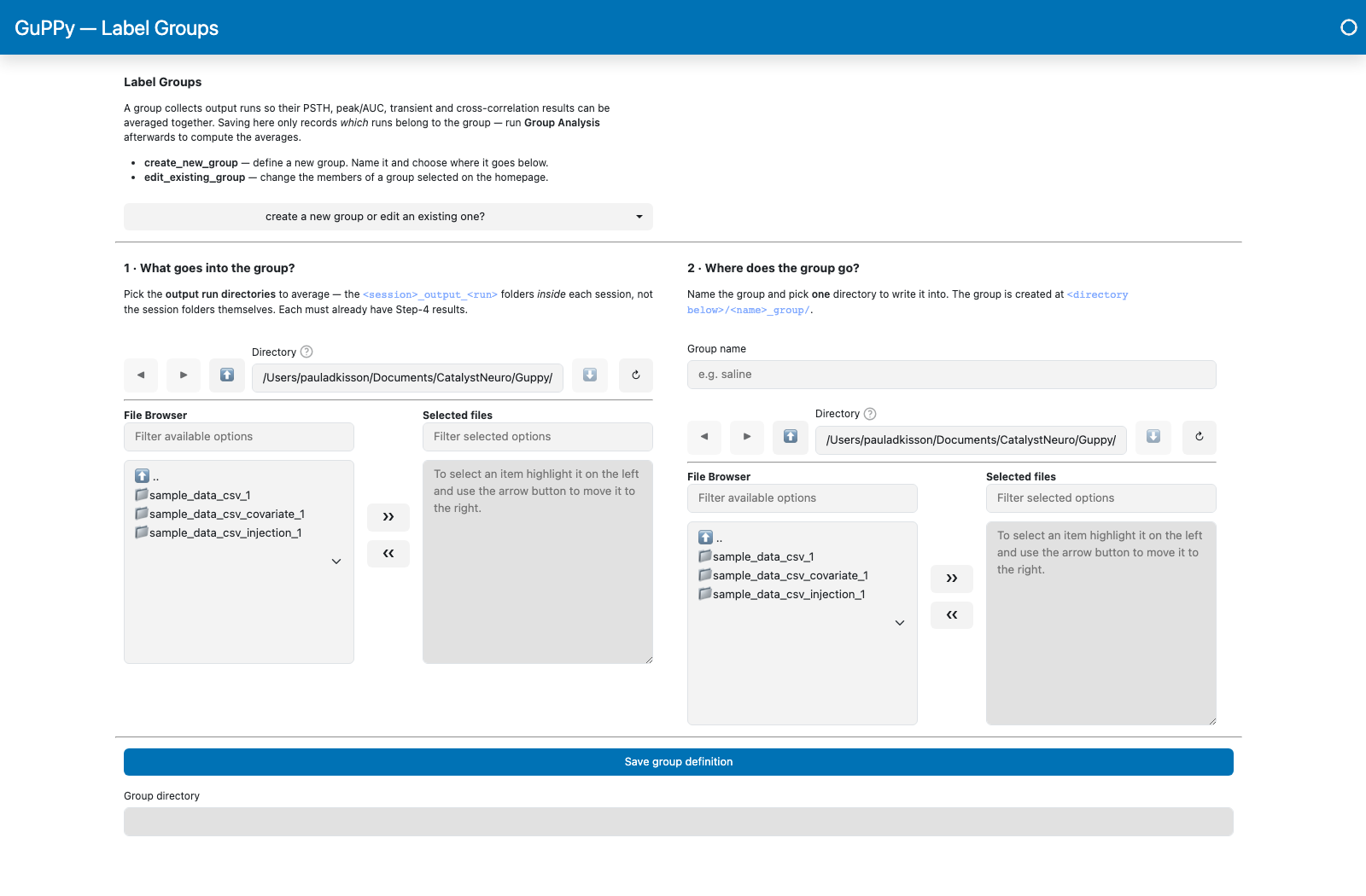
This writes <destination>/<name>_group/ containing a single file, group_members.json, which
records the group’s membership. The group has no results at this point, much like a run folder
that holds storesList.csv before Step 2 fills it.
To change a group later, open Label Groups again and switch the mode to edit_existing_group.
Section 2 becomes a browser for the group itself. Navigate to the <name>_group directory you
want to change and its recorded members load into the member browser, ready to adjust. Editing
works whether or not anything is selected on the homepage.
Selecting and averaging#
Open the Group Output Folder Selection card and tick the
<name>_groupdirectories you want to work with. This card is the group counterpart of Output Folder Selection, and you choose once: the same selection serves both averaging and visualization.Click Group Analysis in the sidebar.
Each selected group is averaged from its recorded members into its own directory. Re-running rebuilds a group’s results from scratch, so dropping a member also drops its columns. The group’s definition survives the rebuild.
Visualizing a group#
A group folder behaves like any other run folder in the visualizer, so there is no mode to switch on and nothing to select a second time. Click Open Visualization GUI in the sidebar. Each selected run and group gets its own tab on the page that opens.
You can visualize a group on its own. Step 5 accepts an empty individual selection as long as a group is ticked, so you can leave Output Folder Selection alone and open only the groups.
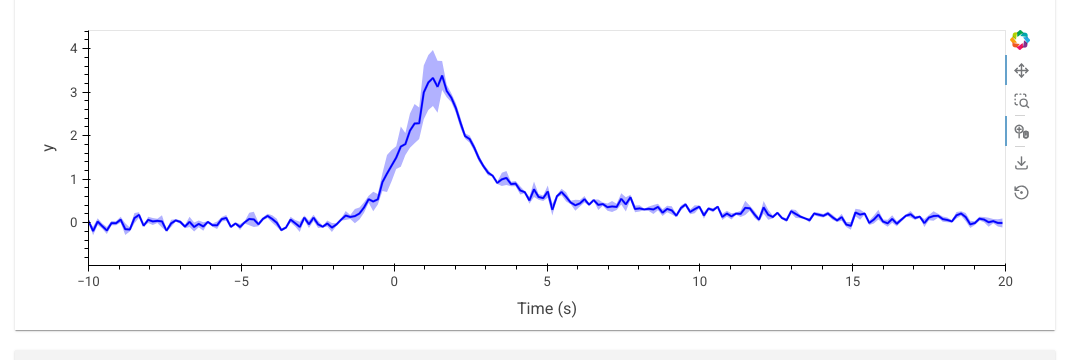
One dashboard opens per selected group, with one line per member run where a session’s dashboard has one line per trial. Any selected session runs open their own dashboards at the same time, so a group and an individual session can be compared in one click.
What lands on disk#
In the <name>_group/ directory:
File |
Contents |
|---|---|
|
The run folders this group averaged, in averaging order |
|
The parameters the averaging ran under |
|
The store mapping, listing the events the group actually holds |
|
Group PSTH: one column per member run |
|
Every member’s peak/AUC rows concatenated |
|
One row per member run |
|
One column per member run |
|
Every member’s tonic epoch means, one row per member and epoch |
|
Each epoch’s mean, standard error and member count across members |
|
Every member’s covariate correlations, one row per member, metric and covariate |
|
Each metric and covariate pair’s mean, standard error and member count across members |
Group PSTH columns are named after the member run folder, and their order matches
group_members.json, so column n is member n.
The tonic and covariate-correlation tables are written only when the members hold those results. Every member must hold them for the same recording sites, or Group Analysis stops with a message naming the runs that lack them. Members must also be comparable: the same tonic epoch labels at each recording site, and covariate correlations computed with the same Bin Width (s) over the same covariates. Binned metrics are not combined across members, since each session’s bins sit on its own clock.
See Output data model for the full file layout.
Re-running#
Group averaging recomputes a group’s results from its members’ current outputs every time, so nothing accumulates across runs. After re-analyzing a member, click Group Analysis again. To add or drop a member, edit the group in Label Groups first, then re-run.