
Combine a session split across two data files#
Some acquisition systems split one continuous recording into two separate session folders — for example a system that writes a new file when a recording is paused and resumed, or splits a long session at a fixed size limit. Combine Data? stitches the matching channels from both halves back into a single continuous trace before preprocessing. This is an unusual case — if your sessions are already one file each, skip this guide.
Before you start#
Each half needs its own session folder. The recording sites in both folders
must be labeled identically in Step 1: Label Stores — the same
signal_<site> / control_<site> pair names on both halves — otherwise
combining fails with a message telling you to re-run Step 1.
Naming your session folders#
GuPPy decides which half comes first, and where the combined result is
written, by sorting the two session folders’ paths alphabetically — not by
recording time. Name your folders so alphabetical order matches recording
order (for example Session_part1 / Session_part2, or a date-time prefix).
If the names sort the wrong way, the halves are spliced in the wrong order
with no error.
The combined result is written into whichever folder sorts first, overwriting its Step 3 outputs. The other folder’s outputs are left untouched.
Matching the two halves#
GuPPy groups sessions to combine by their run name — the suffix on the
output_<run name> directory Step 1 creates — not by session name. Both
halves must use the same run name.
Run Step 1: Label Stores on the first half, labeling its recording sites as usual. Leave Run name at the
1GuPPy fills in (or set an explicit name if you prefer — the second half just needs to match it).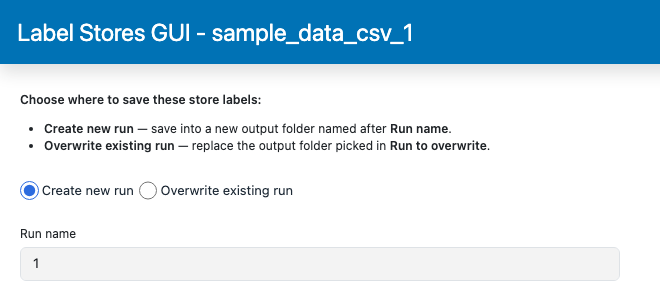
Run Step 1: Label Stores on the second half, using the same recording-site labels and the same run name as the first.
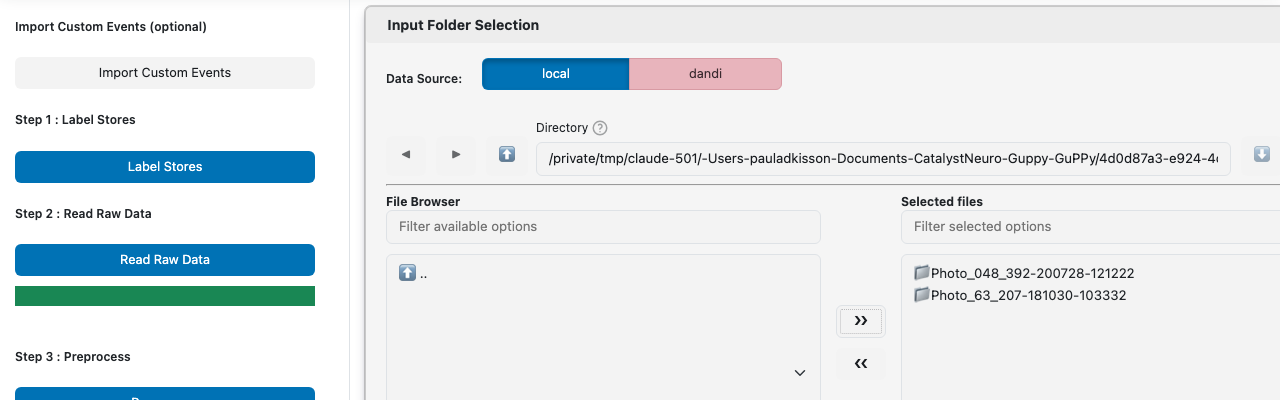
Back on the homepage, select both session folders together in Input Folder Selection.
Open Output Folder Selection and, in Existing runs (steps 2–5), pick each session’s matching output run (e.g. both
output_1).In the Input Folder Selection card, set Combine Data? to
True(below the file browser, where it qualifies the sessions you just picked).
Running the pipeline#
Run Step 2: Read Raw Data, then Step 3: Preprocess. Combining happens automatically inside Step 3, right after per-session timestamp correction, and writes the merged result into the first (alphabetically) session’s output folder — see Naming your session folders above.
Continue to Step 4: PSTH Computation and Step 5: Visualization with
Combine Data? still True. Both already know to read from the merged run
instead of treating the two sessions separately.
What lands on disk#
Combining adds one file to the destination run folder:
File |
Contents |
|---|---|
|
Merged store mapping, union of both sessions’ |
The combined traces themselves overwrite that folder’s
timeCorrection_<site>.hdf5, <store_label>.hdf5, and <event>_<site>.hdf5
files. See Output data model for the full file
layout.
Notes#
Both files being combined must share the same sampling rate; GuPPy raises an error naming the mismatched files if they don’t.
Combining is re-runnable. Re-running Step 3 with Combine Data? on recomputes the merge from the raw, per-session data each time, so repeated runs don’t compound.