Export a session to NWB#
NWB is a common data format for neurophysiology, and the one
the DANDI Archive publishes. GuPPy can package a
finished run — the raw traces, the events, and every derived result — into a
single .nwb file.
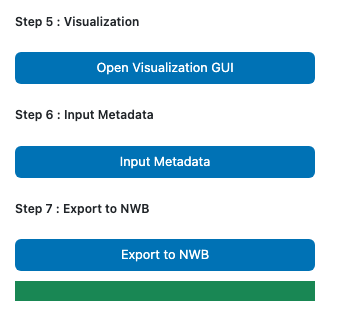
Two optional steps handle this, and they follow Step 5: Visualization in the sidebar:
Step 6 : Input Metadata — describe the hardware, the reagents and the subject. Writes
nwb_metadata.yamlinto the run folder.Step 7 : Export to NWB — write the file.
If you only need GuPPy’s plots and tables, skip both.
These steps cover a session whose data GuPPy read. If the same experiment also produced electrophysiology, video, or anything else GuPPy does not ingest, that data belongs in the same NWB file — see Beyond the GUI.
For what an exported file holds and why, see Fiber photometry data in NWB.
Before you start#
Run Step 1: Label Stores, Step 2: Read Raw Data and Step 3: Preprocess on the sessions you want to export. Step 4: PSTH Computation is optional, but PSTHs, transients, peak/AUC summaries, cross-correlations, binned metrics and bootstrap significance results reach the file only if it ran, and the same holds for Tonic Analysis and the epoch means it writes.
Both steps read the run folder, so select the session folder(s) and the output run(s) on the homepage before clicking either.
Two pipeline choices make a run unexportable. Both steps check before writing anything and refuse the whole batch:
Combine Data? = True. Combining collapses a run group into one output directory, so there is no single session the outputs belong to. Re-run the pipeline with Combine Data? set to false.
Artifacts removed with
concatenate. That method re-times the surviving samples onto a fresh timeline, which breaks alignment to the acquisition clock. Re-run Remove Artifacts after choosing replace with NaN on the Select Artifact Windows page, or re-run Step 3: Preprocess to drop the removal entirely. See Choosing a removal method.
Step 6: Input Metadata#
GuPPy knows the shape of your recording — how many recording sites, which store is signal and which is control — but nothing about what produced it. NWB needs the rest, and no analysis output can supply it. This step collects it.
Click Input Metadata. A page opens in a new browser tab, with a tab inside it for
each selected session, named <session> (<run>). The main GuPPy tab stays responsive.
Fill in Core NWB metadata: the Session, Experimenter and Subject fields. Required fields are marked with a red asterisk, and the
?beside a field explains what it expects.Session start time is required for every acquisition format except TDT and NWB, whose files record it themselves. Give it in ISO 8601, e.g.
2018-10-30T10:33:32-05:00.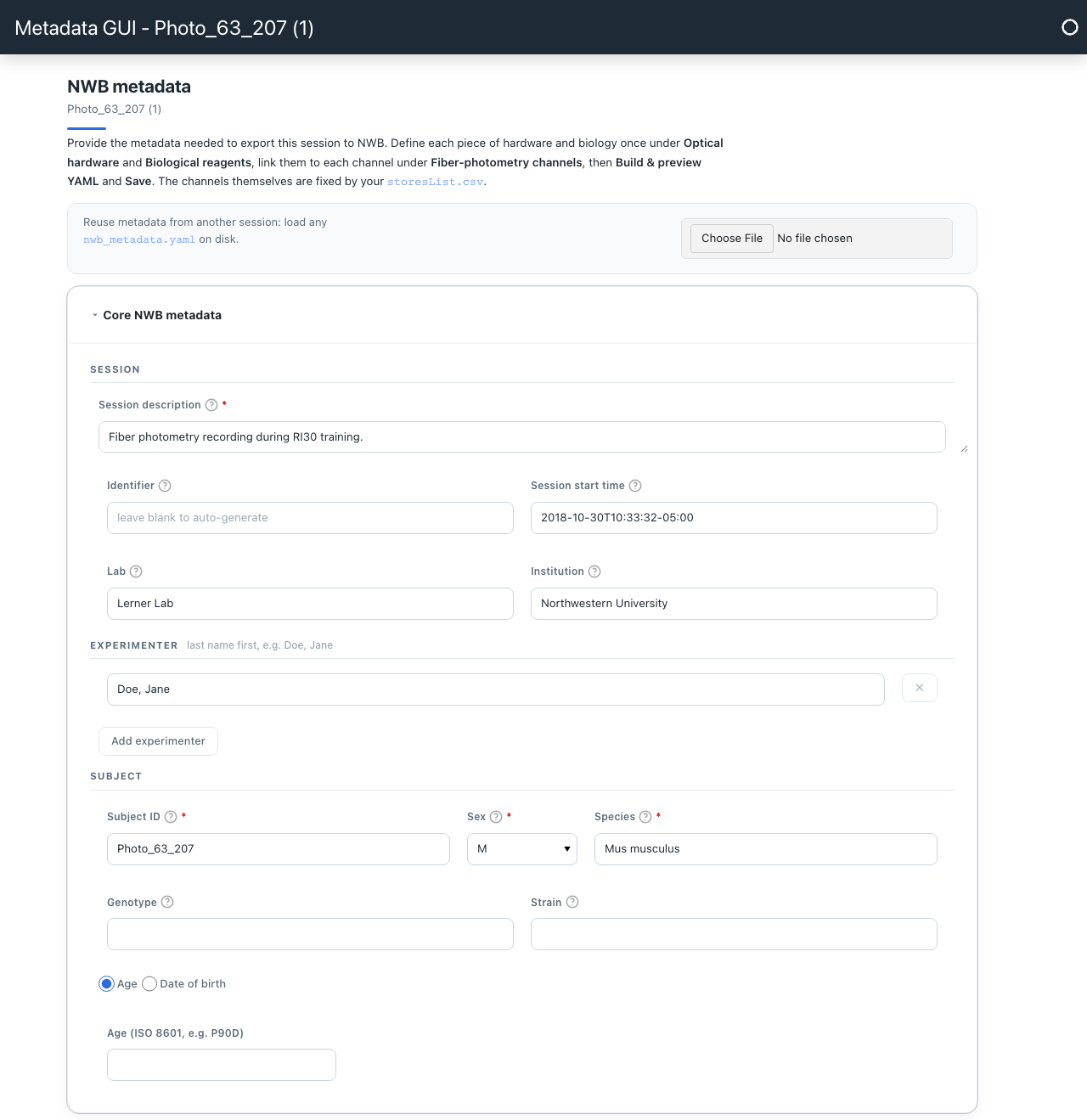
Define your Optical hardware. Each category holds models (the part as the manufacturer sells it — a fiber model, an LED model) and instances (the one in your rig, pointing at its model). Add each model first, then the instances that use it. The fields come from the NWB fiber-photometry schema itself, so they match what the format expects.
Define your Biological reagents in order: a Virus, then a Virus injection that references it, then an Indicator that references the injection. Each link is a dropdown listing what you have already defined.
Link everything under Fiber-photometry channels. These rows are fixed — they come from your
storesList.csv, one group per recording site, each with its control and signal channel. For every channel, give the excitation and emission wavelength, and choose its indicator, optical fiber, excitation source and photodetector. The dichroic mirror and the two filters are optional.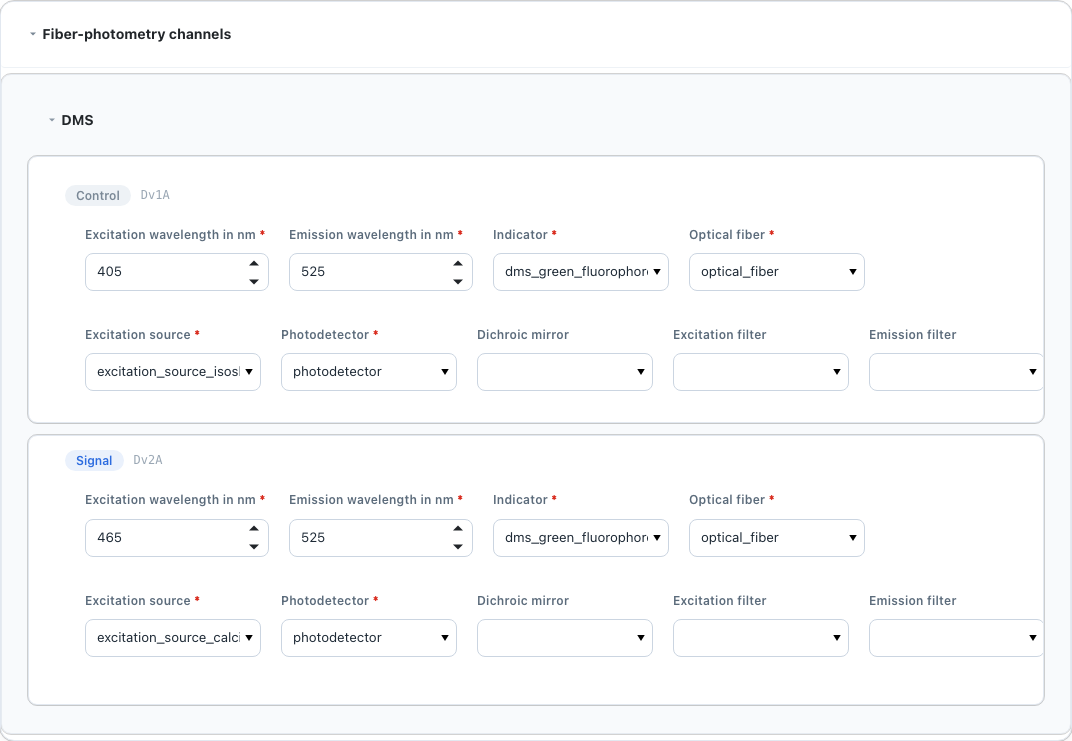
Click Build & preview YAML, then Save metadata. The alert pane above the buttons turns red and names every missing field by name; Save metadata refuses until it is clean. On success the file lands at
<run_folder>/nwb_metadata.yamland the path appears below the buttons.
Reusing metadata across sessions#
Most of this form describes your rig and your virus, not the session — it is
identical across a whole cohort. Fill it in once, save, then in each remaining
session use the Reuse metadata from another session strip at the top of the
page to load that nwb_metadata.yaml. The whole form repopulates, and you
change only the subject and session fields.
The YAML is the authoritative artifact, and it is plain text — readable, diffable, and editable outside GuPPy:
NWBFile:
  session_description: Recording during RI60 training.
  session_start_time: '2018-10-30T10:33:32-05:00'
Subject:
  subject_id: Photo_63_207
  sex: M
  species: Mus musculus
The Advanced — raw YAML card at the bottom of the page shows the same document live. Edit it directly if the form cannot express something, then save.
Step 7: Export to NWB#
Click Export to NWB. A progress bar appears in the sidebar directly below the button and advances once per session.
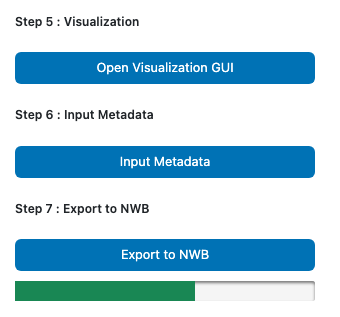
Each session is written to its own run folder as
<session_name>_output_<run_name>.nwb — named after the session and run, so exports
from several runs can be pooled into one directory without renaming.
A session that fails is skipped and the batch continues; the notification at the end names which ones failed and why. A clean batch reports Export to NWB complete.
The file holds the raw photometry under acquisition, the behavioral events
under events, and everything GuPPy computed under processing/guppy. See
Fiber photometry data in NWB for the full layout, and
the Output data model for the on-disk entry.
Sessions GuPPy read from an NWB file#
If GuPPy analyzed a session out of an NWB file — a local .nwb in the session
folder, or a DANDI asset — Step 6 opens no form at all. It tells you so and
stops: that file already carries the devices, the fiber-photometry chain and the
session start time, which is everything the form would ask for.
Run Step 7 directly. It adds GuPPy’s outputs to a copy of the source file, written to the run folder under the usual name. The source file is never modified, and the copy keeps the extension versions the source was written with.
Beyond the GUI: combining with other data#
The export above handles one session’s photometry: the traces GuPPy read, the events it aligned to, and the results it computed. That is the whole story for a photometry-only experiment.
It is not the whole story if the same session also produced electrophysiology,
behavioral video, pose estimates, or anything else GuPPy never sees. NWB’s value
is that one file holds one session — splitting a session across a GuPPy export
and a second file assembled some other way gives up most of the point. GuPPy’s
export is built on NeuroConv, and the same
GuppyInterface behind Step 7 can be combined with NeuroConv’s interfaces for
every other stream to write a single file. Reach for NeuroConv directly when
that is what you need.
GuPPy Fiber Photometry — using
GuppyInterfaceandGuppyConverteron the outputs Step 7 exports.Annotating fiber photometry metadata — the hardware chain Step 6 collects, in its native form.
Combining data interfaces — running several interfaces into one NWB file.
Notes:
Re-running Step 7 overwrites the
.nwbin place. Each export rebuilds from the run folder, so exports do not compound.The metadata you enter in Step 6 is applied on top of what GuPPy and the acquisition files already supply — it only ever adds or replaces, and never removes what was read from the data.
Group averaging is not exported. A group directory is a group product with no session behind it, and combined runs are refused outright.
Export errors name both the session and the run, so a partial batch tells you exactly which run folder to fix.
guppy --export-logscopies the full log, including the traceback behind a failed export, to your desktop.