
Remove artifacts from a recording#
Some recordings contain stretches that should not reach the analysis at all — a knocked patchcord, a chewing bout, an electrical transient. This guide shows how to mark those periods and exclude them.
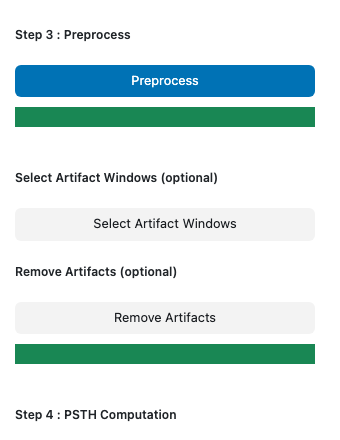
Two optional steps handle this, and they sit between Step 3: Preprocess and Step 4: PSTH Computation in the sidebar:
Select Artifact Windows — mark the contaminated periods. No computation runs.
Remove Artifacts — apply them.
If your recordings are clean, skip both. Nothing downstream requires them.
For background on which artifacts this addresses and which are corrected automatically, see the artifacts explainer.
Before you start#
Run Step 1: Label Stores, Step 2: Read Raw Data, and Step 3: Preprocess on the sessions you want to clean. The traces you mark on are the ones Step 3 produced, so both optional steps need its outputs on disk.
Marking the periods#
Select your session folder(s) and output run(s) on the homepage as usual.
Click Select Artifact Windows. A page opens in a new browser tab showing one trace of one recording site. The main GuPPy tab stays responsive.
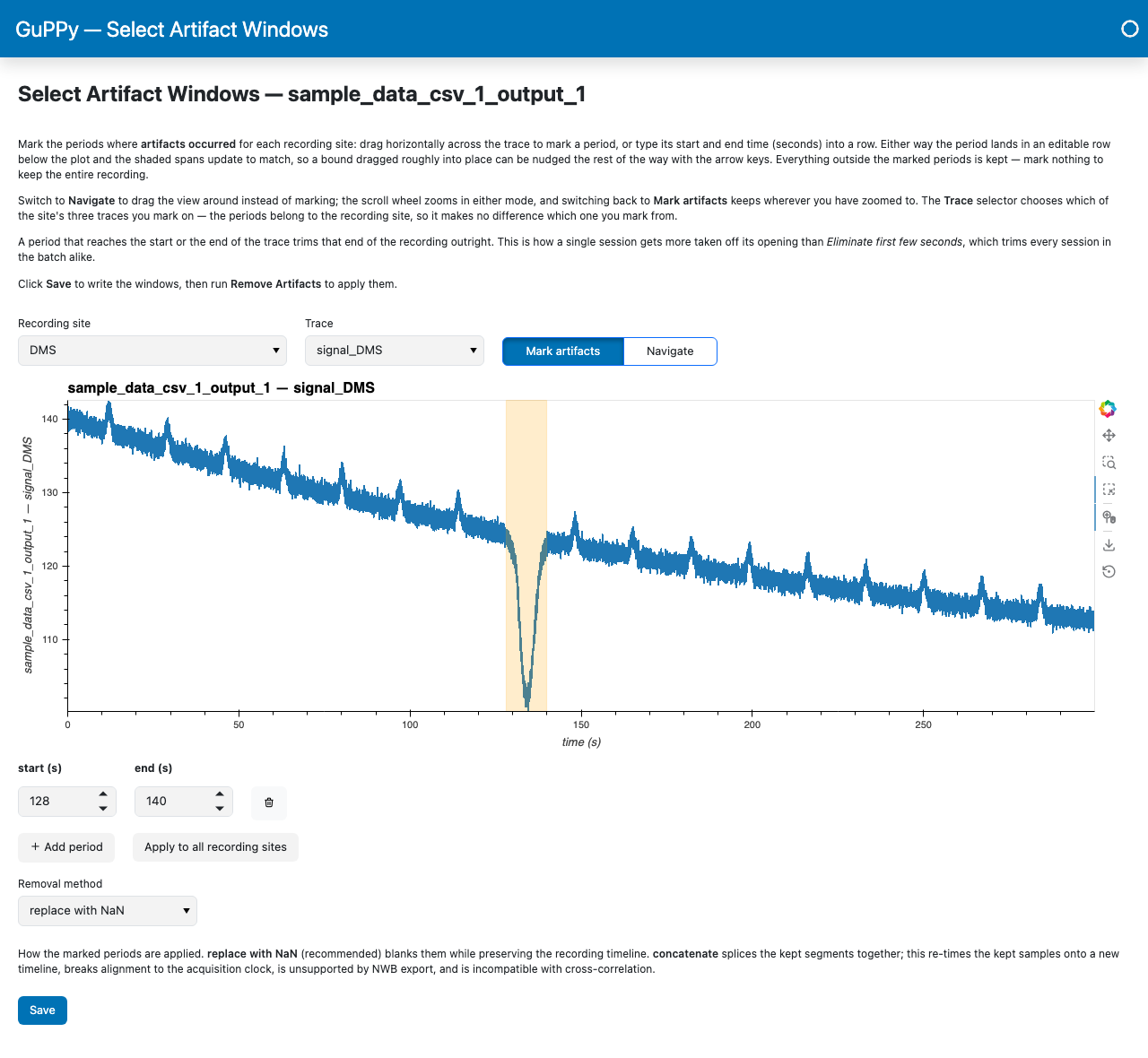
Pick the recording site you want to mark with the Recording site selector, and the trace to mark it on with the Trace selector — the control, the signal, or the signal with the fitted control drawn over it. The periods belong to the recording site, so it makes no difference which of the three you mark from; switch between them to check a stretch against another view of the same moment.
Drag horizontally across the trace, over the contaminated stretch. The period appears as a row of start and end bounds below the plot, in seconds. Refine it from the row: the shading follows as you type, and the arrow keys nudge a bound by 0.1 s at a time. + Add period adds a blank row instead, if you would rather type both bounds.
Add a period for each contaminated stretch; the trash button on a row deletes it.
To look around the recording rather than mark it, switch the toggle beside the selectors from Mark artifacts to Navigate: dragging then pans the view instead of marking a period. The scroll wheel zooms in either mode, and switching back to Mark artifacts leaves you wherever you had zoomed to.
If the same artifact appears across every recording site — a motion artifact usually does, since it hits all sites at the same instant — click Apply to all recording sites to copy the current site’s periods to the others.
Choose the Removal method (see below).
Click Save.
You are marking the periods to remove. Everything outside them is kept, so marking nothing keeps the entire recording.
Re-opening the page later shows the periods you marked, so you can widen one or add another without starting over.
Reusing the periods from another run#
Which stretches of a recording are contaminated does not depend on the analysis parameters, so a second run of the same session should carry the same periods as the first. Marking them again by hand would not reproduce them exactly, and those small differences would land in the very comparison the second run exists to make.
When another run of the same session already has periods saved, the page offers a Copy windows from run selector. Pick the run and click Load: every recording site is filled in from it, ready to check against the traces and adjust. Nothing reaches disk until you click Save.
Recording sites are matched by name, so this works only where both runs gave the site
the same label in Step 1: Label Stores. A site the other run has nothing saved for
keeps whatever you have already marked, and the page tells you which sites it loaded and
which it left alone; if the names do not line up at all — dms in one run against d_ms
in the other — it says so rather than loading nothing in silence.
Trimming extra time from the start#
Eliminate first few seconds (Step 3) takes the same amount off every session in the batch, so it cannot cut deeper into a single recording that started before the patchcord had settled. Mark that opening as an artifact period instead: a period whose start reaches the beginning of the trace removes everything up to its end, and the rest of the batch keeps the trim it was analyzed with.
The trace already begins where Eliminate first few seconds left off rather than at zero, so the beginning to mark from is the left edge of the plot, not 0 s. Dragging from that edge reaches it, as does nudging the start bound down to its minimum. The same holds at the other end: a period whose end reaches the right edge trims the tail.
Typing 0 works too: a bound outside the recording is pulled in to the nearest edge rather than refused. GuPPy tells you which bounds it moved and to what, and rewrites the row to match, so the page always shows what was saved. A period that lies entirely outside the recording has nothing to pull in and is refused.
Choosing a removal method#
replace with NaN (the default) keeps the trace at its original length and masks the marked samples with NaN, which downstream analyses treat as missing. The recording timeline is preserved.
concatenate drops the marked sections and splices the surviving ones together, so the resulting trace is shorter than the input. This re-times the kept samples onto a new timeline, which breaks alignment to the acquisition clock. It is unsupported by NWB export and cannot be combined with cross-correlation. Prefer replace with NaN unless you have a specific reason not to.
Applying the removal#
Click Remove Artifacts. A progress bar appears in the sidebar directly below the button and fills as the work runs.
The step recomputes the control fit, z-score, and dF/F with the marked periods excluded, so it takes about as long as Step 3 itself.
When it finishes, click Show results beside the button. It opens a review tab showing the cleaned traces, so you can confirm the result.
If you click Remove Artifacts without having saved any periods, GuPPy tells you which run is unmarked.
Adjusting a marked period#
Marking is re-runnable. Open Select Artifact Windows again, change the periods, save, and click Remove Artifacts again. Each run recomputes from the raw data, so removals do not compound.
What lands on disk#
Per recording site, in the output run folder:
File |
Contents |
|---|---|
|
The periods to keep (the complement of what you marked) |
GuPPyParamtersUsed.json records what was applied to the run: removeArtifacts
becomes true once Remove Artifacts has run, and artifactsRemovalMethod records
the method you chose.
Removing artifacts rewrites the preprocessed traces in place rather than adding new
files. See Output data model for the array layout of
coordsForPreProcessing_<site>.npy and for which files Remove Artifacts overwrites.